
This page contains all new features, improvements and bug fixes of VivaDesigner 2027 (V12) compared with version 11 for “VivaDesigner” (Desktop and Web Edition), “Viva Publishing Server”, “Database Publishing”, “VivaPosterize” and “VivaImpose” as well as partially for “Viva AI”, if not included in VivaDesigner, and for the new programs “VivaCalc”, “VivaPhoto”, “VivaPDF” and “VivaVideo”. The changes of version 11 are listed under History Version 11.
125 new features · 132 improvements · 47 bug fixes – 304 changes in total
Version 2027 (V12, Build 9415 – 16 November 2026)
IMPORTANT NOTE: THE FILE FORMAT HAS CHANGED. DOCUMENTS SAVED IN THIS VERSION CANNOT BE OPENED IN OLDER VERSIONS.
New programs of the Viva Collection 2027 (4)
Alongside VivaDesigner, version 2027 ships further programs that run on their own and work together with VivaDesigner. Together they form the Viva Collection 2027: the programs are designed to work together, are operated in the same way, and their documents can be used directly in VivaDesigner.
-
- VivaCalc: spreadsheet for Excel (.xlsx, .xlsm), CSV and Numbers files – calculate, edit, format, save, print and export as PDF. Formulas use the program language, the shortcuts follow Excel. For Windows, macOS and Linux. Macros of an .xlsm workbook are retained and never run. Viewing, copying, placing and updating linked tables work without a licence of their own; calculating, editing, saving, printing and exporting a workbook as PDF require a VivaCalc licence.

- VivaPhoto: photo program for TIFF, JPEG, PNG, BMP, PSD/PSB, JPEG 2000 and camera RAW; it also opens GIF, WebP and AVIF as well as files from Paint.NET, Krita, OpenRaster, GIMP and Affinity with their layers. Editing takes place in a photo document (.vivaphoto), the original remains unchanged. Palettes for corrections, mask, layers, effects, AI and image information; for retouching brush, eraser, clone stamp, healing brush, spot healing, patch and red eye, for selecting selection tools with a magic wand. Layers are available as pixel, adjustment and fill layers with masks. In addition, there are cropping, rotating, flipping and straightening, image size, canvas size, lens correction, “Develop RAW…”, 16 bits per channel, “Convert to Profile…”, batch processing, “Image Metadata…” and the VIVA AI Assistant. Export as TIFF, JPEG, PNG or PSD with layers. For switchers, there are shortcut sets for Photoshop and Affinity Photo. Also as a Free Edition.

- VivaPDF: PDF program that checks PDF files for accessibility and saves them tagged according to PDF/UA. In addition: reading, searching, comments, signatures, filling in forms, organising pages, comparing two versions, changing the text of a line and opening EPS files and, on Windows, PostScript files. “View › Reading Order” shows the reading order as numbered areas on the page; the VIVA AI Assistant describes figures, sets title and language and fills in forms with your information. The Free Edition opens, checks, reads, prints and fills in forms.

- VivaVideo: video editing program of the Viva Collection. Videos, photos, music and speech are linked like placed pictures and cut on any number of tracks of the timeline, with transitions, titles, lower thirds and subtitles, slow motion and time-lapse as well as colour corrections. “Recording…” records the screen, a window, an area, a camera or audio only, optionally with a microphone and a highlighted mouse pointer; “Narration…” speaks your text with a voice of the operating system, without an internet connection. Formats 16:9, 9:16, 1:1, 4:5, 4:3, 16:10, 21:9 or a custom size, export as MP4 video. The VIVA AI Assistant edits the film according to your instructions, for example a slide show from the photos in a folder. For Windows, macOS and Linux, also as a Free Edition; animated titles and lower thirds belong to the paid edition.

- VivaCalc: spreadsheet for Excel (.xlsx, .xlsm), CSV and Numbers files – calculate, edit, format, save, print and export as PDF. Formulas use the program language, the shortcuts follow Excel. For Windows, macOS and Linux. Macros of an .xlsm workbook are retained and never run. Viewing, copying, placing and updating linked tables work without a licence of their own; calculating, editing, saving, printing and exporting a workbook as PDF require a VivaCalc licence.
New features (125)
VIVA AI Assistant (24)
-
- New “VIVA AI Assistant” palette: describe tasks in your own words. The assistant reads the document, changes objects, texts and style sheets, looks at the result as a page image and checks it.
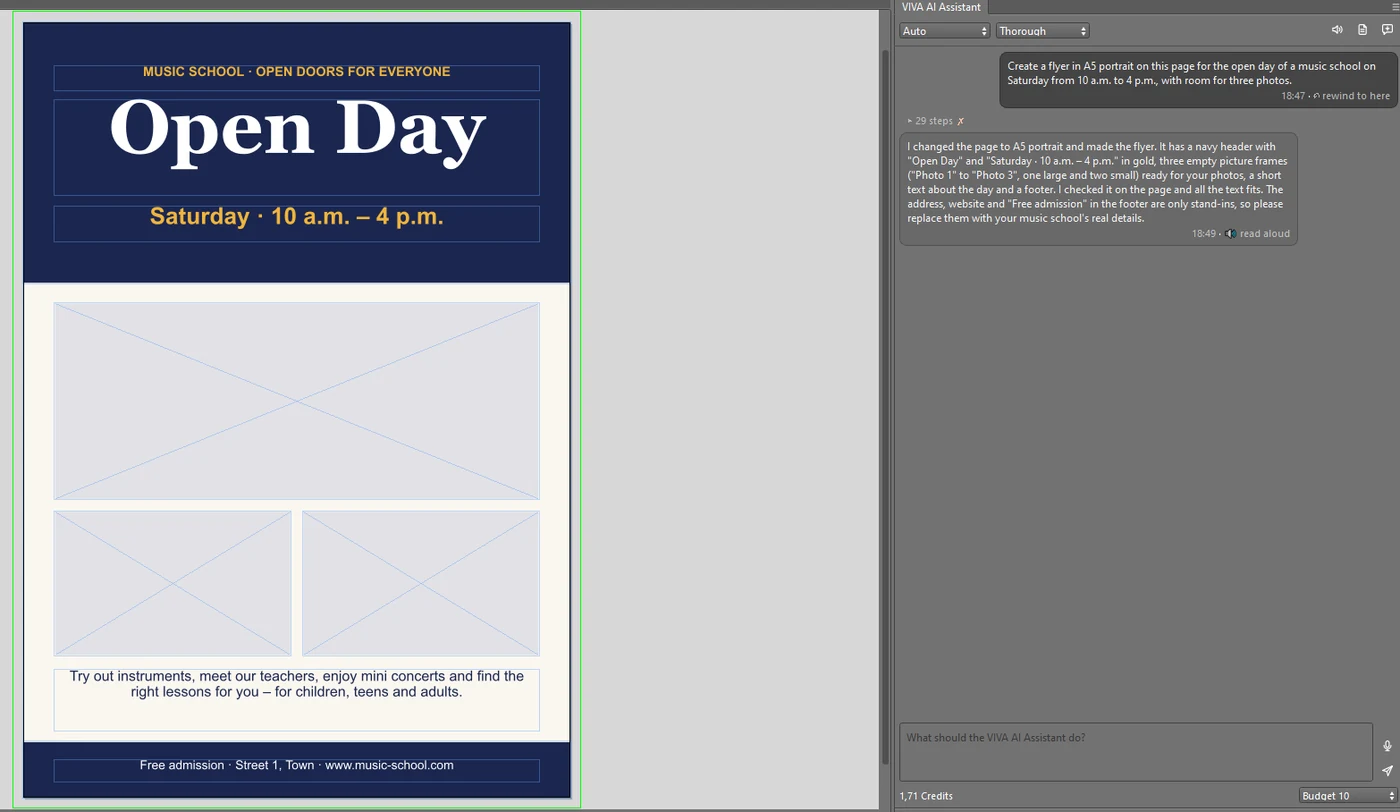
- Activation and hosting: Switched on in the preferences under “VIVA AI Assistant › Preferences” with the option “Activate the VIVA AI Assistant” and agreement to the VIVA AI License Agreement. Under “Hosting”, you choose where the assistant processes your documents and requests, for example in the EU.
- “Plan only” mode: the assistant only describes what it would do. A stop button ends every round; the costs per round and per conversation are shown in the palette.
- Thorough or Fast: Choice between “Thorough” for larger tasks and “Fast” for simple ones.
- Rewind: “Rewind to here” resets the conversation and the document to the state before a message.
- Budget: Budget per conversation from 5 to 100 VIVA Points. If it is not enough, the assistant stops and offers to raise the budget and continue without repeating work already done.
- Billing: Billing in VIVA Points, for voice input additionally by speaking time; the balance is shown in the palette, with “Buy VIVA Points”.
- Simple changes without a script: set the page format, add pages, create text, graphic and picture objects, delete, move and resize objects, replace text, apply paragraph and character style sheets, fit text objects to their text. Locked and protected objects remain untouched.
- Overset text: Detection of overset text, naming the object and page.
- Shapes: Shapes such as star, rosette, heart, arrow or speech bubble are created as real shape objects that remain editable.
- Options and rights: Execution of options such as group, arrange, align, lock or convert text to paths. Whatever the user may do within their licence, working mode (Beginner, Advanced, Professional) and the access privileges of the document, the assistant may do as well.
- Documents: Open documents (including PDF, IDML and InDesign), save them, create new ones and export them as PDF – also with PDF export presets or only selected pages.
- Database Publishing: the assistant connects data sources (CSV, Excel, JSON), creates rules as well as IP and CP forms, places text, pictures, tables, barcodes, QR codes and charts with data fields, writes and tests JavaScript scripts and generates test pages from the data. It also builds report templates for the VivaDesigner Server and catalogues with style rules.
- Easy Publishing: The assistant masters Easy Publishing of Database Publishing if the licence includes it: create text layouts and layout sets, assign text objects, place, read, update and re-place records.
- Remembering preferences: for all documents on the computer (e.g. unit of measurement or corporate colours) or for a specific document. Under “Notes” you can see and change what the assistant has remembered.
- Internet: Research on the internet and reading web pages, if the chosen hosting offers this, placing pictures from the web as well as downloading and unpacking files (e.g. press kits with logos).
- Working with files on the computer: view folders, search and read files, place pictures, save text files such as CSV lists. System and program folders, hidden files and key files remain out of reach.
- Voice input: Voice input via the microphone button; on request the assistant reads its answers aloud.
- Scripts palette: Scripts of the assistant can be transferred to the Scripts palette.
- Scripts of the assistant run isolated: only in the open document, without access to files, programs and the network, with a time and memory limit.
- Tables: The assistant imports and exports table cells (Excel, Numbers, CSV) and creates new tables with a header row and values.
- Fonts and page formats: The assistant searches the VIVA font server for fonts and assigns them; on request it creates pages in a named page format.
- Image metadata: The assistant reads information from image files (title, description, ALT text, creator, copyright, credit line, persons shown) and, on request, writes it to linked image files or removes it from them.
- Photos: The assistant edits photo documents in tabs, for example straightening or brightening a photo. It is also available in VivaPhoto, VivaPDF and VivaVideo.
- New “VIVA AI Assistant” palette: describe tasks in your own words. The assistant reads the document, changes objects, texts and style sheets, looks at the result as a page image and checks it.
Exchange with other programs (13)
-
- Word export (DOCX): documents can be exported as Word documents. Letters, quotes, invoices, minutes and reports look in Word as they do in VivaDesigner – same number of pages, page and line breaks in the same places – and can be edited further there. Margins, headers and footers from the alias pages, paragraph and character style sheets with inheritance, lists, tables, images, footnotes and endnotes, hyperlinks as well as page number, page count and date as Word fields are taken over.
- Word export for layouts, too: text objects become text boxes, linked text objects linked text boxes, free shapes arrive with fill, stroke, gradient and opacity, SVG, PDF, AI and EPS graphics as vector graphics. What Word cannot display arrives either as an image or as an editable object without the effect. Optionally “Text only” in reading order. A report lists what was not taken over or only approximately.
- Tables: new options “Import …” and “Export …” in the Table menu and in the context menu of the cells. The import takes Excel (XLSX), Apple Numbers and CSV files from the selected cell, optionally with formatting (font, colours, fills, borders, merged cells and numbers as Excel shows them). The export writes the selected cells or the whole table as an XLSX or CSV file.
- Pages Import (new): Apple Pages documents from Pages 5 open without Pages or are imported as text – on Windows, macOS and Linux. Text with style sheets, lists, tables, images, footnotes and endnotes, comments, hyperlinks, sections with page numbering and headers and footers on alias pages are taken over. Page layout documents arrive with their freely placed objects; every page template becomes an alias page. A note after the import lists what could not be taken over.
- Numbers Import (new): table cells from Apple Numbers documents from Numbers 10 can be taken into an existing table; sheet, table and range can be chosen. Number, currency, percentage, date and duration formats arrive as Numbers shows them.
- QuarkXPress Import (new): opens QuarkXPress documents of versions 3.1 to 5.0 (.qxd, .qxt, .qwd, .qwt, including the Japanese version 3.3), versions 7 to 2019 and projects of version 2026 (.qxp) including templates (.qpt). From versions 3.1 to 5.0 and 2026, pages, master pages, swatches, objects, lines and Bézier shapes, pictures, linked text with character and paragraph attributes, style sheets, groups and text wrap are imported; from the other versions, depending on the version, pages, colours, objects, pictures and text. An import report lists what could not be transferred.
- Affinity Import (new): opens and imports documents of Affinity Publisher, Affinity Designer and Affinity Photo (.af, .afpub, .afdesign, .afphoto, also version 2) as well as templates (.aftemplate). Pages and artboards, master pages, layers, shapes and paths (parametric shapes in their exact form), pictures, symbols, masks and effects, colours in their colour space including spot colours, text with character and paragraph attributes, style sheets, tables, text wrap, page numbers and table of contents markers are imported; pixel layers with 16 bits per channel arrive as well. An import report lists what could not be transferred.
- Scribus Import (new): opens Scribus documents (.sla, .sla.gz) from Scribus 1.2 to 1.7 with pages, master pages, sections, layers, swatches, objects, paths, groups, gradients, pictures with image effects, text wrap, linked text, footnotes, style sheets, tables, form fields and bookmarks. An import report lists what could not be transferred.
- PDF Import (new): rebuilds a PDF as a real, editable document with text objects, lines, paragraphs and style sheets, plus rules, shapes and pictures. Columns, indents, paragraph spacing, tables and indexes follow the typesetting of the original; missing fonts are replaced so that the text breaks at the same places. PDF and AI files can be opened and inserted into an existing layout via “File → Import”. Replaces the previous “PDFImport” AddIn.
- PDF Import: the new option “Convert colors” converts RGB and Lab colours of text and graphics to CMYK with the colour profile of the document; with “Keep CMYK images as CMYK”, CMYK images remain CMYK. Black and white become the default colours [Black] and [White], Pantone, HKS and RAL colours become real spot colours, and the colour profile of an output intent becomes the CMYK profile of the new document, if it is installed.
- Word import (DOCX): VivaDesigner now opens Word documents (.docx, .docm, .dotx, .dotm) itself, without conversion via the server (“DOCX Import” AddIn). Old Word files (.doc) are still converted.
- RTF files can now also be opened: a document is created in the page format of the file, with its margins, sections and headers and footers on alias pages.
- Quality check layer: on request, the PDF, IDML and INDD imports place the original page by page semi-transparently on a separate, hidden layer “[Quality Check]”. Show it to see the rebuilt document and the original on top of each other and spot every difference immediately.
Viva Collection in VivaDesigner (6)
-
- VivaPhoto documents: VivaPhoto documents (.vivaphoto) can be placed like pictures. “Edit Original” opens the photo document directly in VivaDesigner in a tab of its own next to the layouts, with the “Photo” menu and the tools, palettes and keyboard shortcuts of VivaPhoto, including “Develop RAW…”; “Update” takes the changes over into the layout; “Package & Send” includes them.
- Open as Photo: “Open as Photo” (Picture menu and context menu) turns a placed pixel image into a new photo document in a tab of its own; the picture and the image file in the layout remain unchanged.
- Placed documents: Pages of VivaDesigner and Database Publishing documents can be placed like pictures as well, with “Edit original” and “Update”. For placed VivaDesigner documents, “Image Layers…” shows and hides individual layers, as with PSD images; the selection is saved with the document. “Package & Send” includes placed documents with their pictures and fonts and, on request, removes personal data and GPS data from the copied pictures.
- VivaCalc in the layout: a sheet, a name or a range of a workbook is placed as a linked table. The “Links” palette shows its status, “Update” takes over new values.
- Importing Excel and CSV: “File › Import …” accepts Excel and CSV files, linked or as a copy. Excel cells keep their values and number formats; the export writes numbers as numbers again. When cells are copied, HTML and RTF go to the clipboard.
- VIVA Charts: new chart object for column, bar, line, column-line, area, pie and doughnut charts, with a data window (CSV, JSON, Excel, Numbers), templates and settings in the module palette. In the accessible PDF, every chart automatically receives an alternative text made from type, title, series and categories. VIVA Charts is an add-on module with a licence of its own and is not included in the Commercial Edition either; licences of the previous Chart AddIn also apply in the layout. Without a licence, existing charts remain visible and printable.
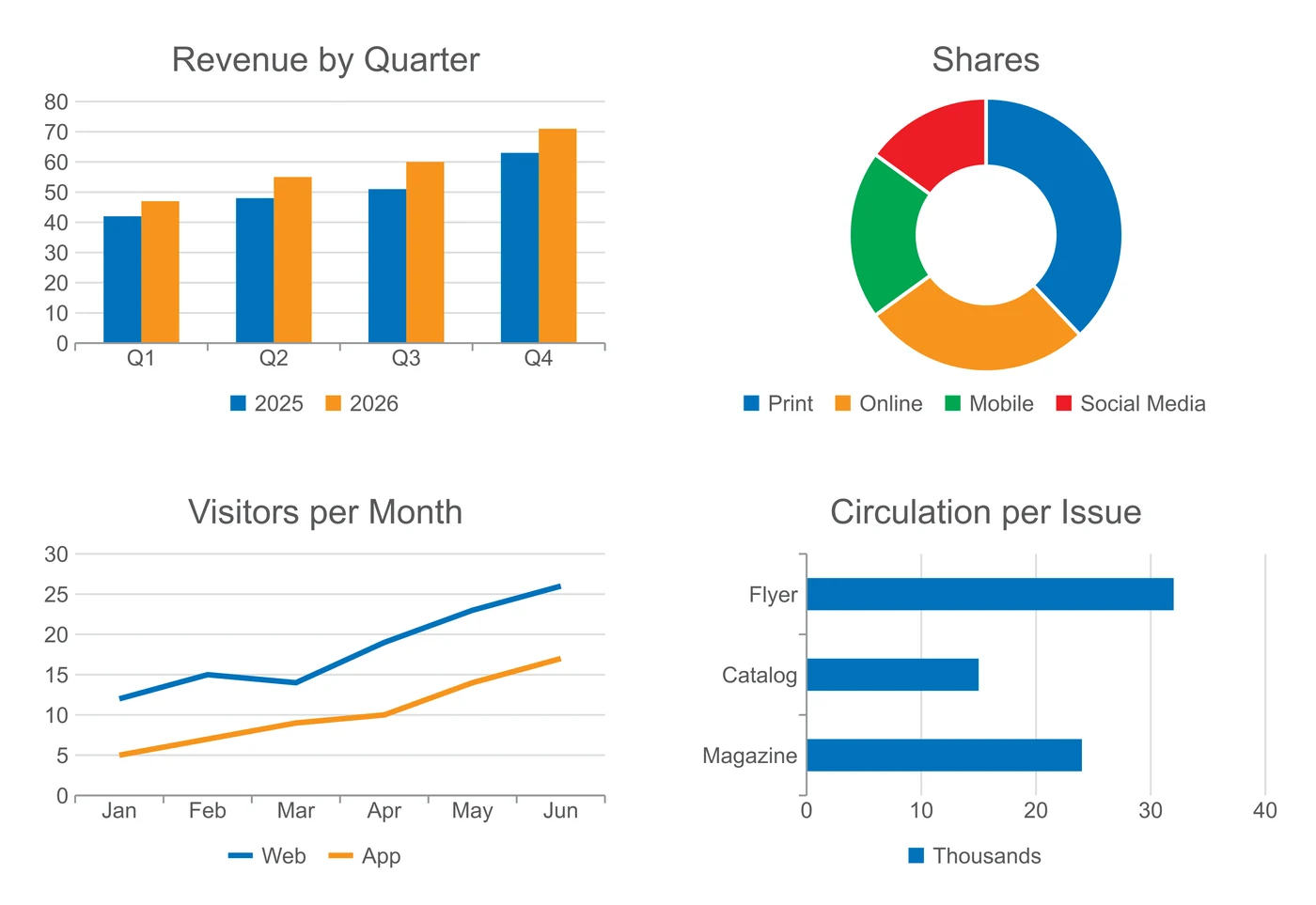
Image editing (11)
-
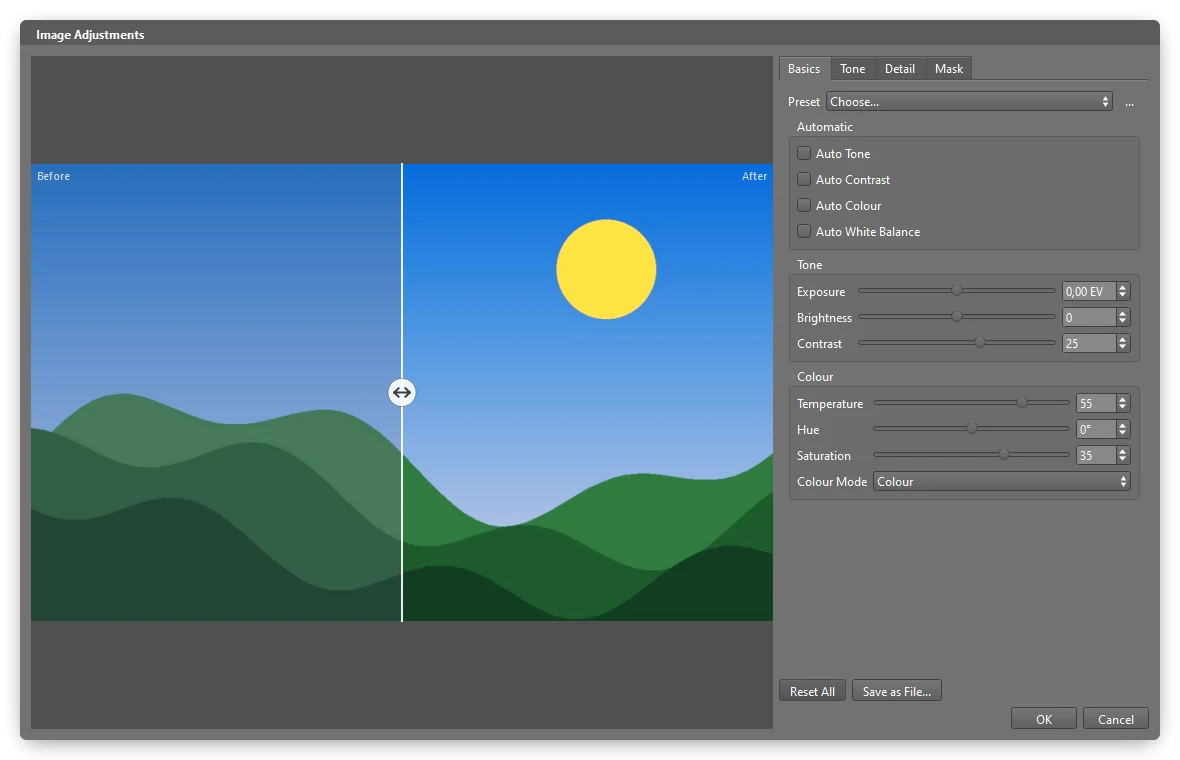
- Picture › Image corrections…: window with before/after view for exposure, brightness, contrast, colour temperature, hue, saturation, greyscale and sepia; automatic levels, contrast and colour correction, automatic white balance, levels and curves also per colour channel with eyedroppers; sharpen, Gaussian blur and motion blur; soft edge for cut-out images. Your own presets can be saved and shared.
- Non-destructive: The image corrections belong to the picture object, do not change the image file and apply on screen, in print and in the PDF – also for PDF, EPS and SVG images. CMYK images keep their black generation. Complex corrections of large images are calculated in the background. Picture style sheets can also contain image corrections; VivaDesigner calculates automatic corrections individually for each image.
- Save as file: “Save as file…” writes the corrected image as a new file, optionally as PSD with original, retouch and corrections as layers. The new file keeps the metadata of the image (EXIF, IPTC, XMP); with “Remove personal data and GPS”, you leave this information out.
- PSD images with layers: when layers are shown or hidden, the program composites them itself as Photoshop does – with layer and vector masks, blend modes, clipping masks, groups, adjustment layers, fill layers and layer effects.
- PSD with layers: File › Export › As JPEG/PNG/SVG/PSD file… also writes pages as “PSD with layers”: every object is on a layer of its own, named after the object. “File › Export › Object…” writes several selected objects the same way.
- New effects: “Stroke”, “Gradient overlay” (a real gradient in the PDF) and “Bevel and emboss” – also in graphic style sheets, VivaXML and the scripting interface.
- Clipping paths: Clipping with any path saved in Photoshop; the contour for text wrap can be chosen. New: “Smooth path …” and “Use clipping as object shape”.
- “Image Metadata…” (context menu of the picture object and of the Pictures palette): edit title, headline, description, ALT text, keywords, creator, rights, persons shown, location, event, date taken and digital source, for one image, the selected images or all images of the document. For each field, you keep, replace, extend or clear the content; language tabs translate it with “Translate with VIVA AI”. The dialog shows conflicts between EXIF, IPTC and XMP, marks fields with personal data and, after confirmation, writes to the linked file (with a backup copy), to the embedded copy or to VivaCloud, without recompressing the image – for JPEG, TIFF, PSD/PSB, PNG and WebP. The Pictures palette shows the metadata sorted into groups.
- Full resolution when zooming: New option “Full Resolution When Zooming In on Pictures” (Preferences › Program): if you zoom in further than the preview reaches, VivaDesigner draws the picture from the full image data, also rotated, scaled or flipped and with corrections, mask and retouching. Print, PDF and document remain unaffected.
- New image formats: GIF, WebP and AVIF (with transparency and colour profile, the first frame of animations), camera RAW files such as DNG, CR2, CR3, NEF, ARW, RAF, RW2, ORF and PEF (developed with the white balance and colour matrix of the camera, with 16 bits per channel) as well as images from Paint.NET, Krita, OpenRaster and GIMP can be placed. You show and hide their layers with “Image Layers…” as with PSD images.
- Gamut warning: “View › Gamut Warning” shows colours in grey that cannot be printed with the proof profile – in pictures, fills and text, on its own or together with “Color Proof”. The setting applies per window.
- Picture › Image corrections…: window with before/after view for exposure, brightness, contrast, colour temperature, hue, saturation, greyscale and sepia; automatic levels, contrast and colour correction, automatic white balance, levels and curves also per colour channel with eyedroppers; sharpen, Gaussian blur and motion blur; soft edge for cut-out images. Your own presets can be saved and shared.
PDF and accessibility (8)
-
- New palette “Accessibility check” (Window menu, with PDF/UA licence): shows before the tagged PDF export what a screen reader cannot use, such as a missing title or language, skipped heading levels, graphics without alternative text or tables without header cells. A double click shows the location, “Fix” corrects it – each can be undone. The findings are grouped by severity, “Check Again”, “Show” and “Fix” are also in the context menu.
- PDF export: a PDF 2.0 with tags is marked as PDF/UA-2 (ISO 14289-2) and meets its checking rules; PDF/A-2 and PDF/A-3 with tags are also marked as PDF/UA-1.
- Accessible PDF: the button “Describe with VIVA AI” writes the alternative text of an object in its language. If the image file brings along an ALT text or a description, the picture receives it as alternative text when it is placed, and “Describe with VIVA AI” offers it before VIVA AI is asked; this saves VIVA Points. In the file information, VIVA AI suggests title, description and keywords. Charged in VIVA Points.
- PDF tags: paragraphs can be marked as block quote, caption or table of contents entry via the paragraph style sheet. The “Tag export” setting is available in all work modes.
- Collections: Collections have their own document settings (title, description, keywords, main language, statistics); the PDF export of a collection takes them over and creates PDF tags again.
- VivaPDF: completely newly developed and designed PDF library from VIVA. VivaDesigner uses it to create PDF and renders PDF, PostScript and EPS files entirely by itself – for placed PDF pages and EPS files, the PDF import and printing. This also makes the installation smaller.
- MathML formulas as vector graphics: sharp at every size, in the font and colour of the anchor position. In the PDF the text of the formula is searchable, in the accessible PDF each formula is an element of its own with alternative text. EPUB and HTML receive MathML, Word documents a Word equation.
- PDF export: new option “Export Notes as PDF Comments” (PDF › General tab, Comments group). Notes of objects and in the text appear as yellow comments in the PDF file, with the author as the title, also in the PDF export of a collection. The option is not available for PDF/X, PDF/A and PDF with tags.
Automation and scripts (3)
-
- Graphical script debugger: breakpoints (including conditional ones), single step, variables, call stack, watch expressions, console, break on exception, editor with save and restart.
- Pages know their format: width, height, pageFormat and landscape read it, setSize() gives a document page its own format.
- Scripts: import and export tables, choose a clipping path, set a page format by its name and query information on placed documents.
Layout, text and fonts (15)
-
- Page sizes: Different page sizes in one document, e.g. an A5 landscape page in an A4 document. Alias pages can also have a format of their own, and in the PDF every page keeps its format. In the exchange with InDesign (INDD and IDML), Affinity and Word, the page sizes are kept; in the Word export, pages of other formats become sections of their own.

- Cross-references: with “Insert Cross Reference…”, you refer in the text to other places in the document. The “Cross References” palette shows all references, “Update Cross References” brings them up to date, and in the accessible PDF they are links. Cross-references from InDesign and Affinity documents are taken over as updatable cross-references.
- 24 new parametric shapes: arrow, double arrow, angled arrow, cross, parallelogram, leaf, shield, banner, frame, lightning bolt, wave, rose, rosette, superellipse, star polygon, guilloche, infinity sign, curved arrow, curly brace, grid, thought bubble, arc, spoked wheel and fan. Like the existing shapes, they can be changed with the blue handles and with numeric values in the object properties.

- Emoji and colour fonts: the character map shows colour fonts such as Segoe UI Emoji in colour and offers all characters of a font, including those beyond U+FFFF; the Unicode ranges follow Unicode 18. Line breaking, sorting as well as date and number formats follow Unicode 18 and CLDR 49.
- Gradients as text colour: selectable in the colour palette, attribute bar and character style sheets, also for underline and strikethrough. They are displayed, printed and exported; the text stays searchable in the PDF. Text gradients from Word are transferred.
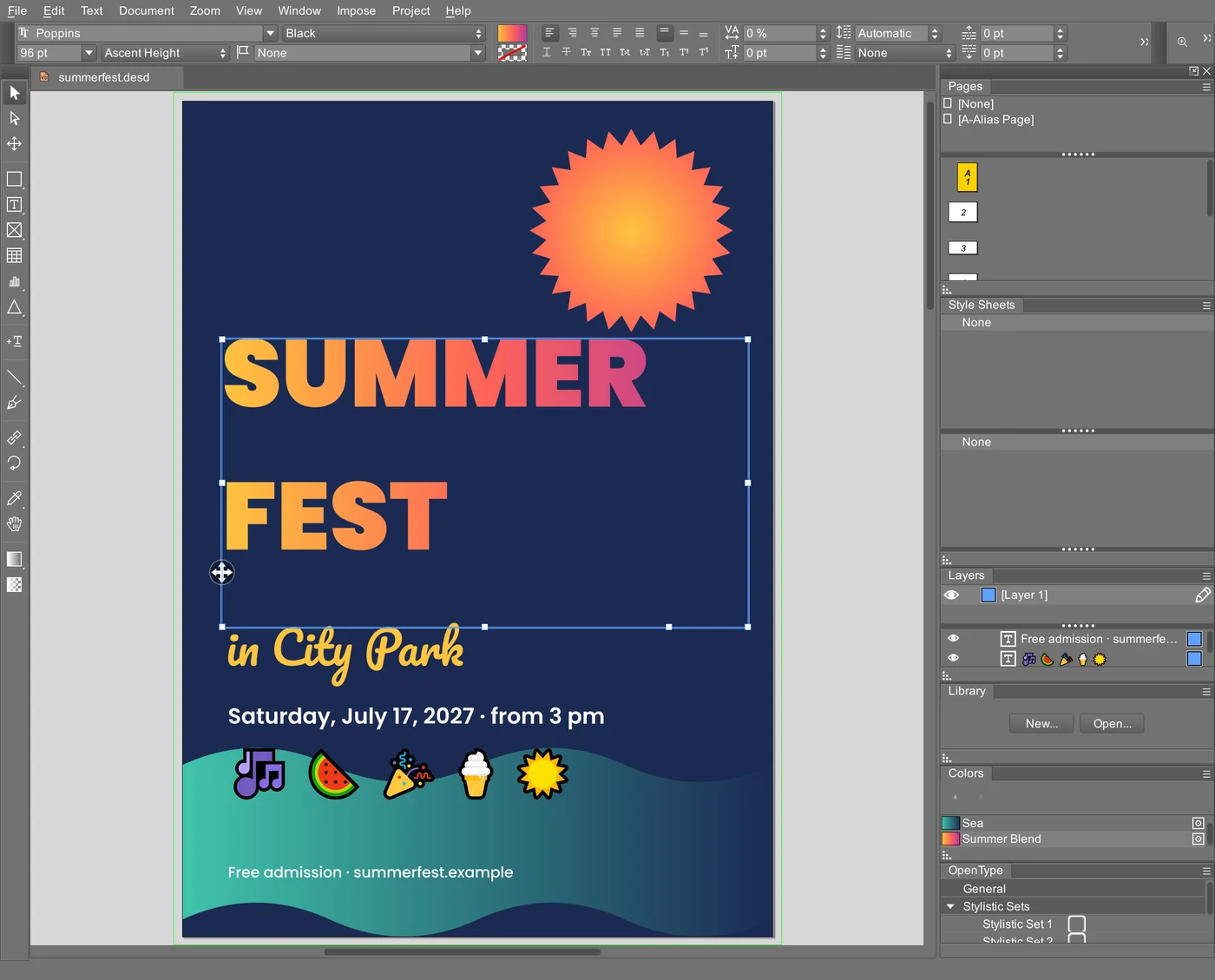
- Font selection: Searchable font selection in the attribute bar, attribute palette, character map and the “Missing fonts” dialog: typing filters the list by any part of the name (“aria bold” selects Arial Bold).
- Font list: The font list shows the recently used fonts at the top, below them the fonts embedded in the document and the fonts used in the document, and then all other fonts in groups by writing system, for example Arabic, Hebrew, Thai, Japanese or Korean. Each group has a heading; which group a font belongs to is determined by the characters it actually contains. Mark favourites with a star and limit the list to them. Hovering over a font previews it on the selected text.
- Text preferences: New text preferences “Use font metrics” (ascender, cap height and x-height from the font’s OS/2 table, as in InDesign) and “Allow break before punctuation after a space”. The IDML import switches both on; existing documents keep their layout.
- Pasting text: Pages are added automatically when text is pasted or imported.
- Fitting picture objects: Fit the picture object to the picture content by double-click [#2362].
- Graphics tools: The submenu of the graphics tools shows its tools as a grid of icons as soon as it contains more than a dozen.
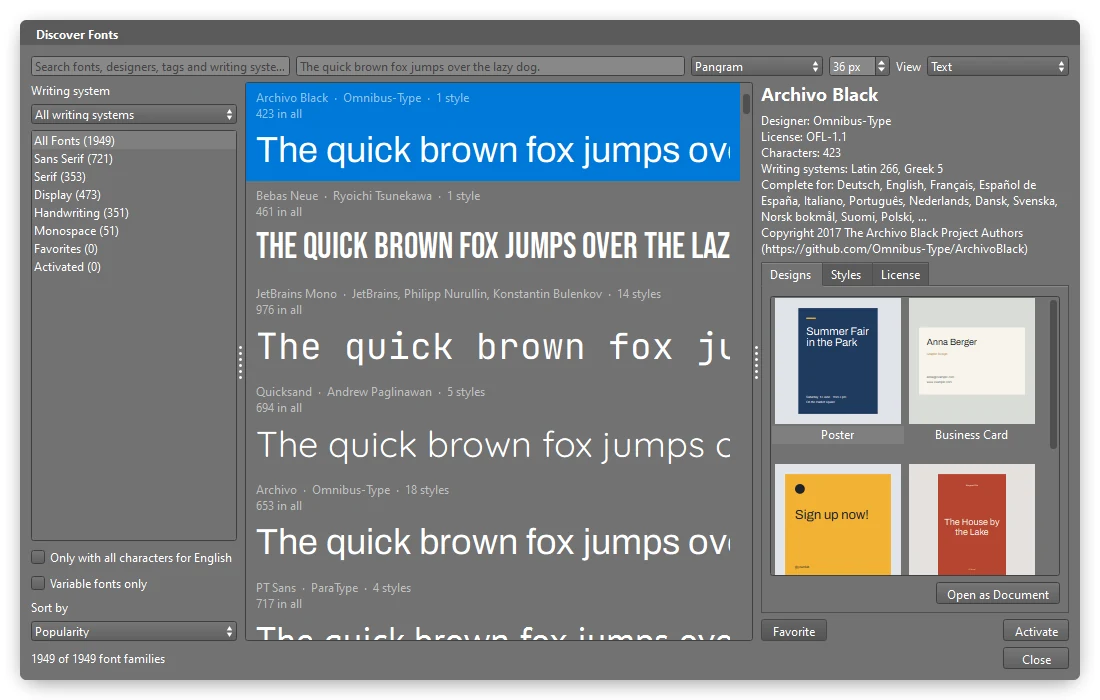
- Discover Fonts: With VivaDesigner 2027, nearly 2,000 font families are available free of charge, in all editions including the Free Edition. “Discover Fonts …” (Text menu, directly below “Font”): browse the free fonts of the VIVA font server by category, writing system and keyword, with a preview in your own text. Design examples open as a new document, a font family is activated with one click.
- Missing fonts: VivaDesigner downloads missing fonts from the VIVA font server in the version used by the document – also via a button in the “Missing Fonts” dialog.
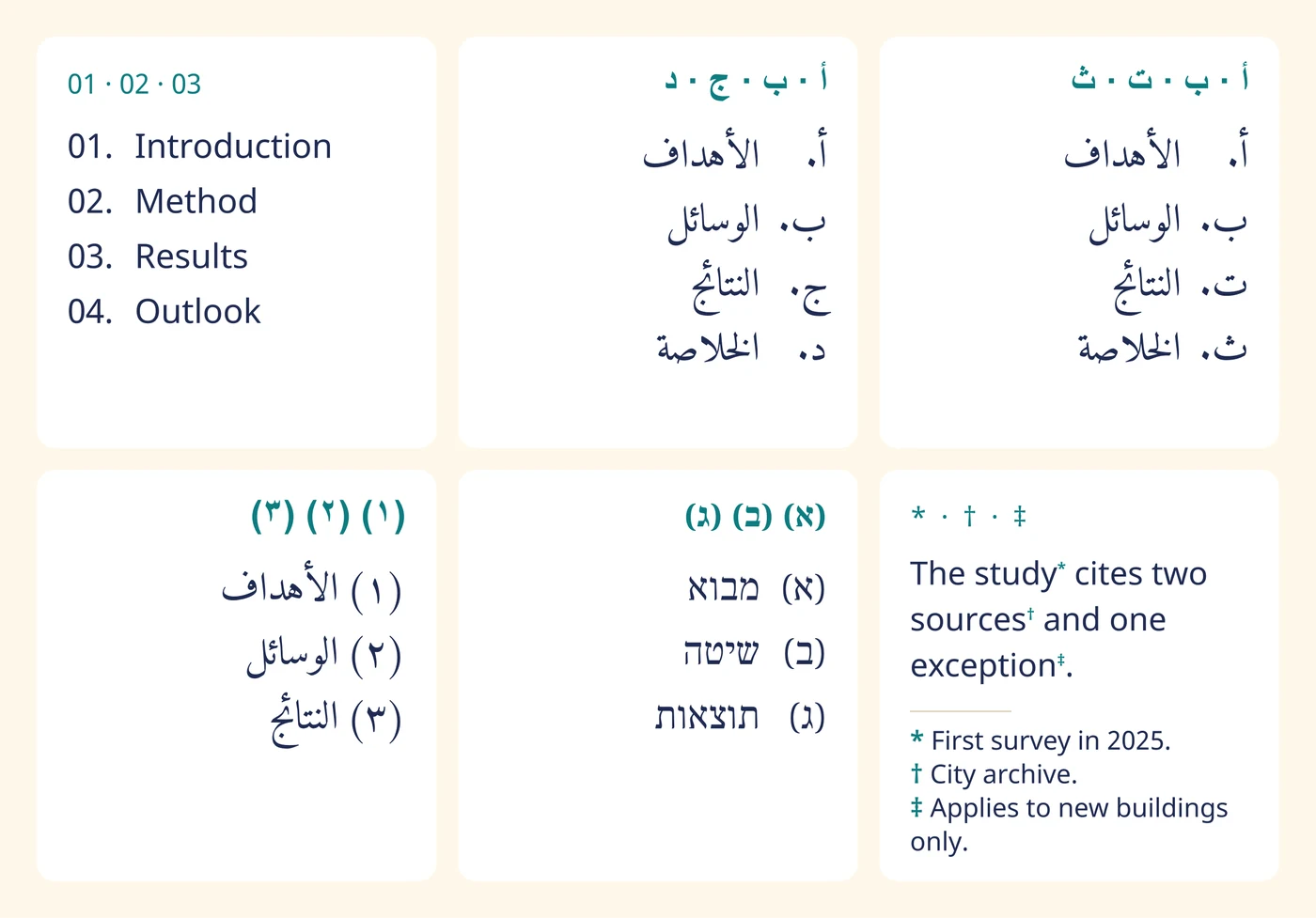
- New number formats for lists, footnotes and endnotes and the page numbering: 01, 001 and 0001, for lists also “None”, for footnotes and endnotes also “Asterisks” (*, **, ***) and “Symbols” (*, †, ‡). On request, the numbering of footnotes and endnotes restarts on every page, every spread or in every section (“Per page”, “Per spread” or “Per section” in the footnote settings). You insert a footnote with Ctrl+Alt+Shift+F (Mac: Command+Option+Shift+F).
- Page formats as of October 2026: social networks, mobile devices in logical size, the new group “App stores” and further screens; Twitter is now called X.
- Page sizes: Different page sizes in one document, e.g. an A5 landscape page in an A4 document. Alias pages can also have a format of their own, and in the PDF every page keeps its format. In the exchange with InDesign (INDD and IDML), Affinity and Word, the page sizes are kept; in the Word export, pages of other formats become sections of their own.
Languages and writing systems (16)
-
- VivaDesigner knows 44 new languages: Tamil, Kannada, Malayalam, Marathi, Punjabi, Odia, Assamese, Sanskrit, Khmer, Burmese, Macedonian, Basque, Maltese, Luxembourgish, Western Frisian, Romansh, Latin, Ancient Greek, Esperanto, Armenian, Georgian, Azerbaijani, Kazakh, Uzbek, Kyrgyz, Tajik, Mongolian, Amharic, Tigrinya, Yoruba, Hausa, Igbo, Somali, Persian, Urdu, Pashto, Central Kurdish, Uyghur, Sindhi, Yiddish, Dhivehi as well as Traditional Chinese, Chinese (Taiwan) and Chinese (Hong Kong). Chinese is now called Simplified Chinese. The names of the languages appear in the language of the user interface.
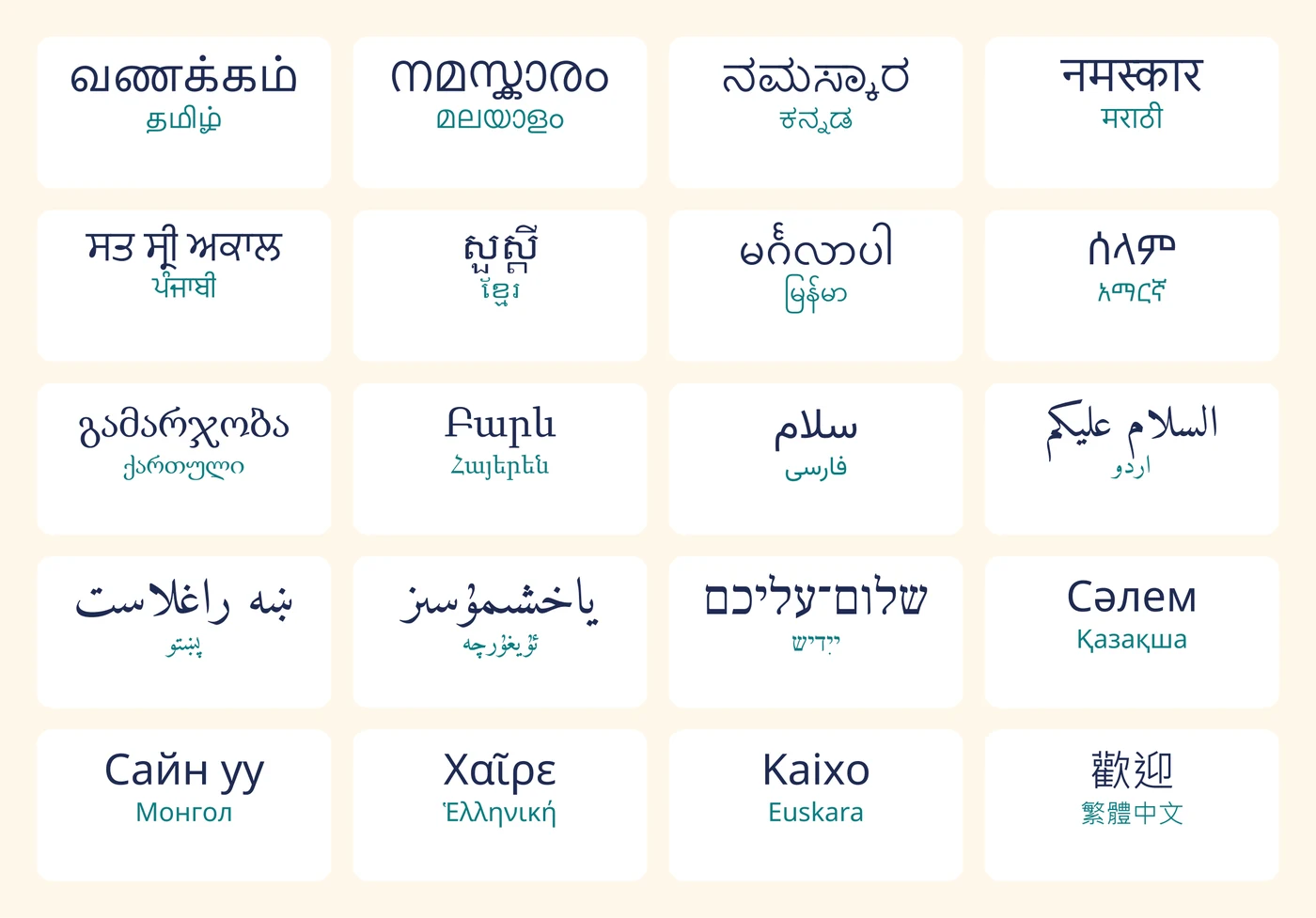
- Right to left: If Persian, Urdu, Pashto, Central Kurdish, Uyghur, Sindhi, Yiddish or Dhivehi is the language of the document, new text objects run from right to left as with Arabic and Hebrew.
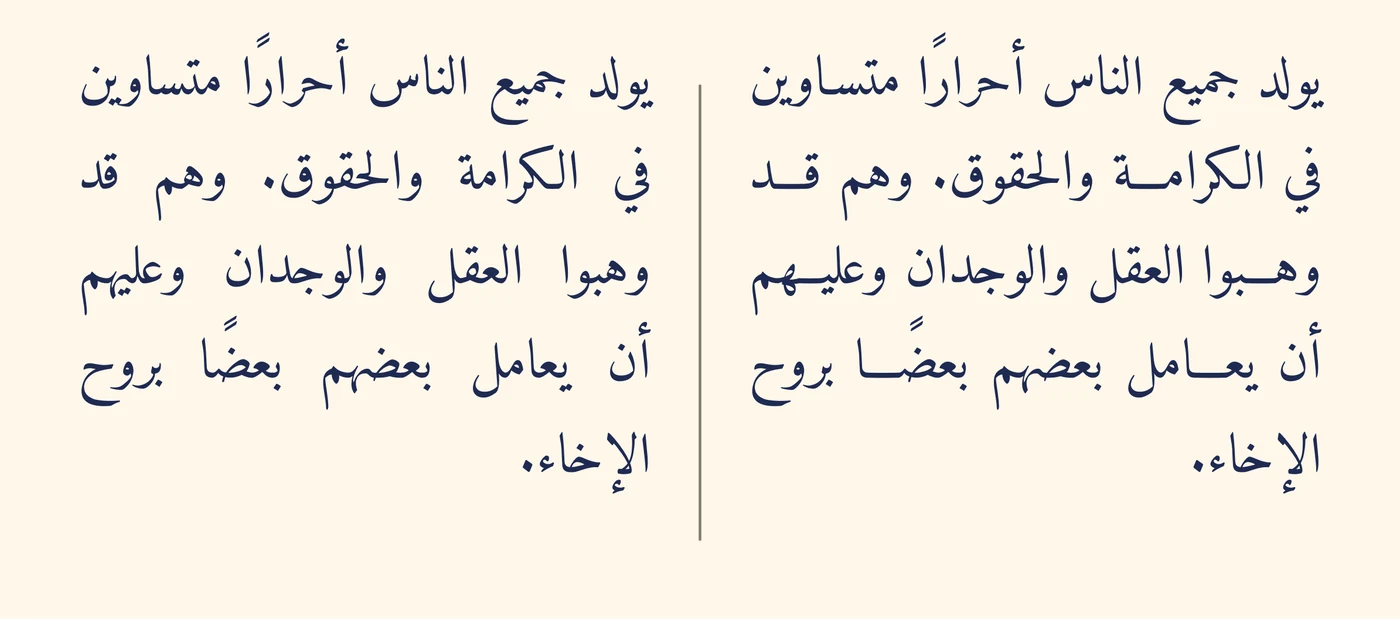
- Kashida for Arabic justification: with “Insert Kashida”, you stretch Arabic words in justified text, as is customary in Arabic book typesetting, instead of balancing the line only through the word spaces – at the levels Short, Medium, Long and Stylistic (paragraph style sheet and Window › Module › Paragraph › Word & Character Spacing). The “Kashida Rules” determine the places where a word is stretched: Naskh, Simple or Automatic (matching the font). The font reshapes the word; the text itself remains unchanged. “No Kashida” in the character options excludes individual words, for example names. Kashida is kept in the exchange via IDML and Word (DOCX) and is taken over when importing InDesign and RTF documents.
- Lists and digits: Lists in Arabic and Persian text count in the digits of their language (١ ٢ ٣ and ۱ ۲ ۳ respectively), and so do footnote and page numbers; Hebrew text and Urdu count with the digits 0 to 9. In right-to-left paragraphs, the period, parentheses and other characters before and after the number are on the correct side: “1.” appears as “.١” as in running text, “(1)” with parentheses pointing inward.
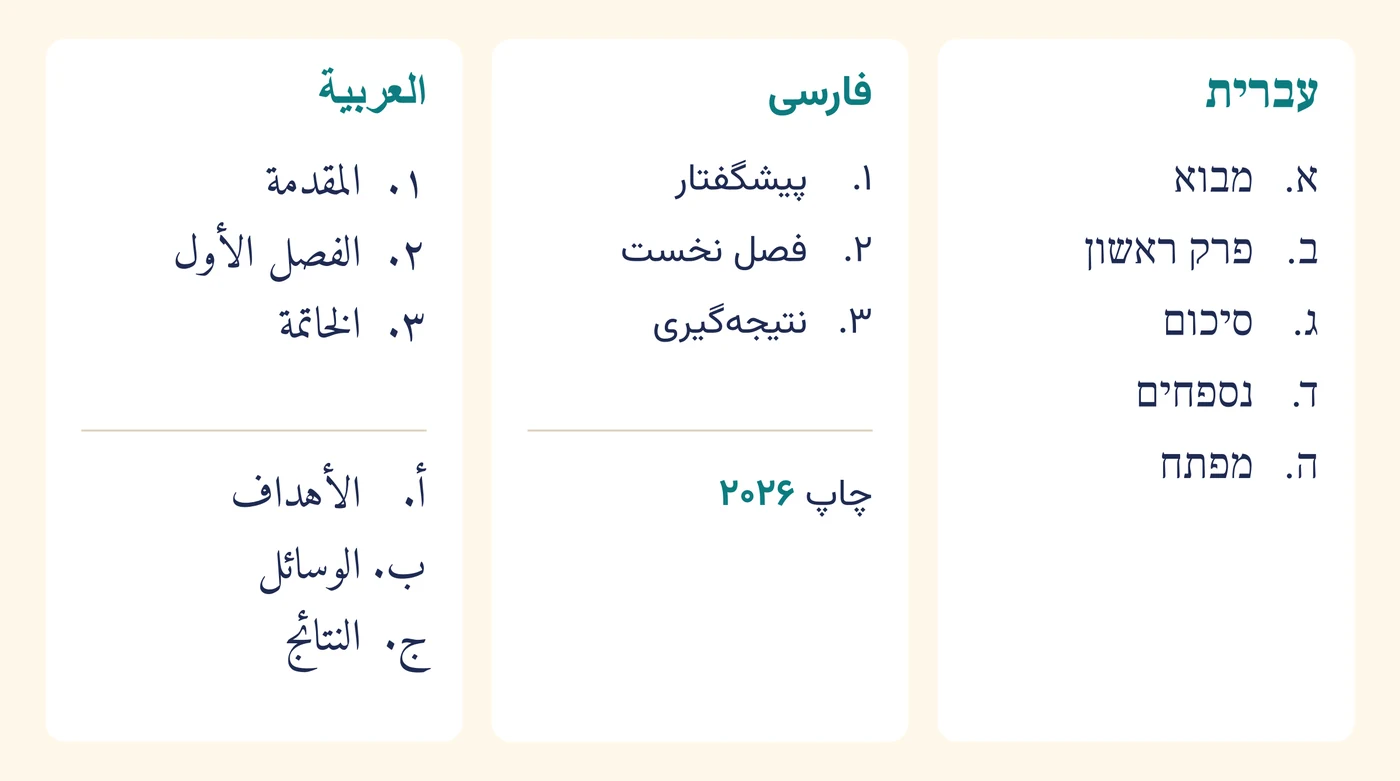
- Arabic and Hebrew number formats: For lists, footnotes and endnotes and the page numbering, there are the number formats “Abjad” (أ, ب, ج), “Alif-Ba-Ta” (أ, ب, ت) and “Hebrew” (א, ב, ג); lists and footnotes also offer “Hebrew, non-standard”. The formats count as in InDesign, and the drop-down lists show sample characters. The new formats also apply to page number variables, cross-references and books.
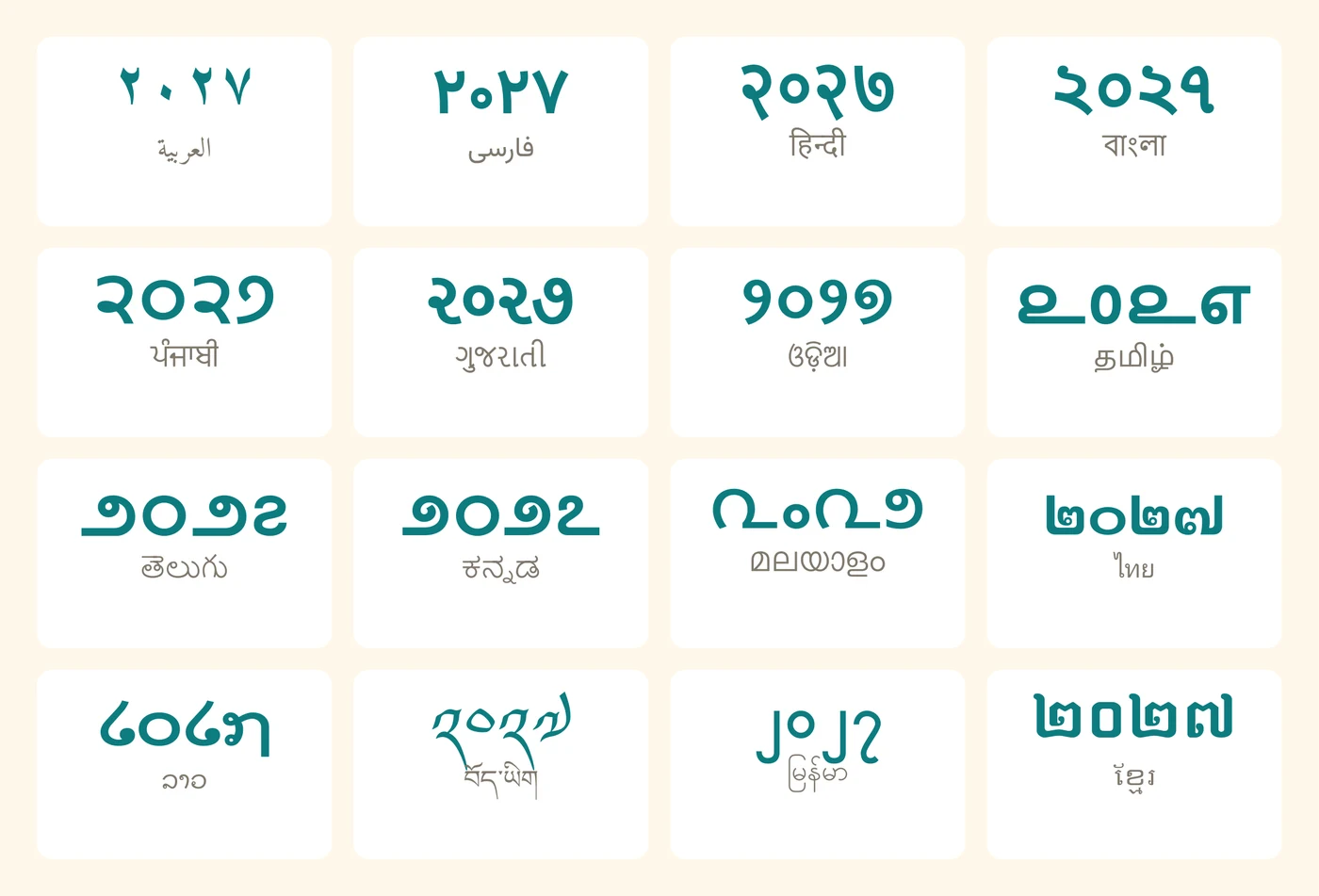
- Digits: New “Digits” attribute (Text › Character Options › Options as well as character and paragraph style sheets): it determines in which digits the numbers of lists and footnotes, page numbers, text variables and typed numbers appear – “Western”, “Arabic-Indic”, “Persian”, “Native” or another script such as Devanagari, Tamil or Thai. The text is always saved with the digits 0 to 9, so that search and spell check find it as usual; in the PDF, copying yields the displayed digits. If the font lacks the chosen digits, VivaDesigner sets them in a fallback font.
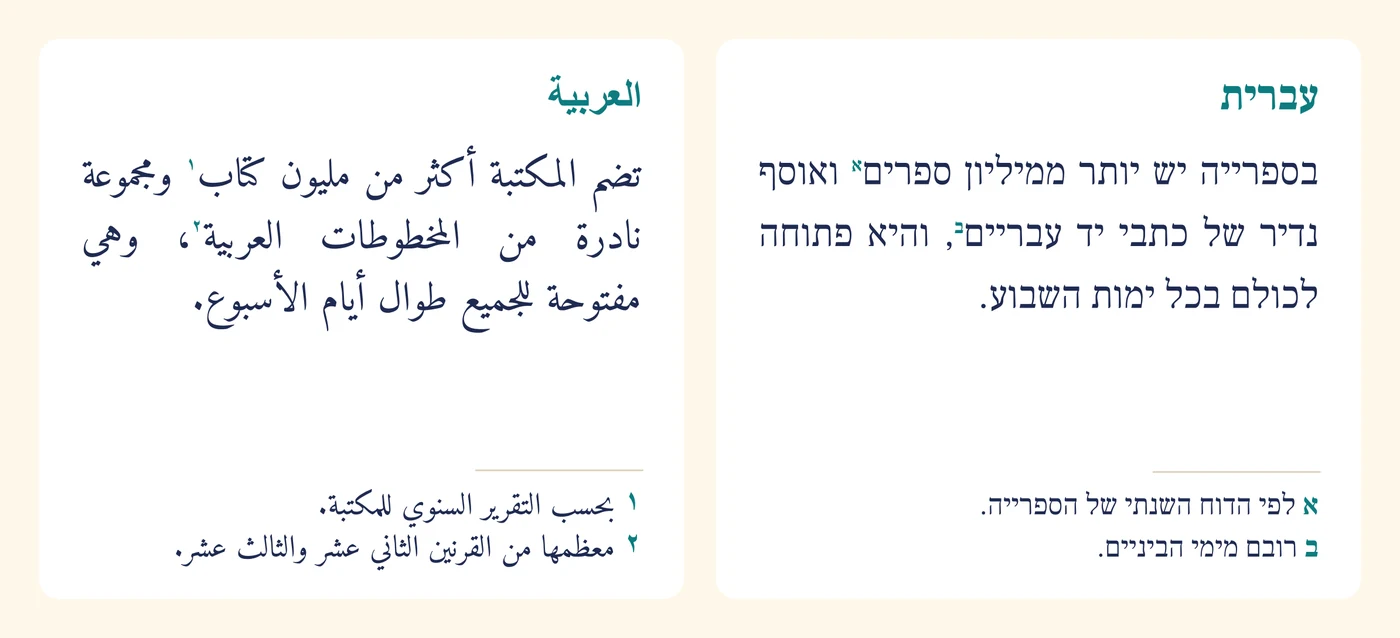
- Right-to-left footnotes: A new footnote or endnote in a right-to-left paragraph also runs from right to left and is right-aligned. The page number of a cross-reference appears in the digits of the language at the position of the cross-reference, and page number variables are in the correct order in right-to-left text as well.
- Language lists: All language lists (character palette, style sheets, document setup, preferences, layers and spell check) have a search field, show the recently chosen languages at the top and are sorted alphabetically in the language of the user interface.
- Dictionaries: VivaDesigner downloads dictionaries for hyphenation, spell checking and thesaurus from the address given by the VIVA server, also for new languages: spell checking for Assamese, Esperanto, Kannada, Marathi, Mongolian, Persian, Tamil and Central Kurdish, hyphenation for Assamese, Esperanto, Kannada, Marathi, Mongolian, Odia and Punjabi, and thesaurus for Esperanto and Marathi. The online spell check checks all languages that its server offers.
- Language codes: In PDF, EPUB, Word and IDML, texts carry valid language codes so that screen readers read them aloud in the correct language; in EPUB, every paragraph and every text passage in another language carries its own language. When opening and exporting Word, IDML, RTF, InDesign, Pages, Affinity, Scribus and QuarkXPress documents, languages are assigned uniformly by their language codes; Serbian in Cyrillic and Latin script remains separate.
- Exchange: Number formats, the “Digits” attribute and the restart of footnote numbers are kept in the exchange with InDesign (INDD and IDML) and Word, including Abjad, Alif-Ba-Ta and Hebrew. Formats without an equivalent become 1, 2, 3, and a notice lists them.
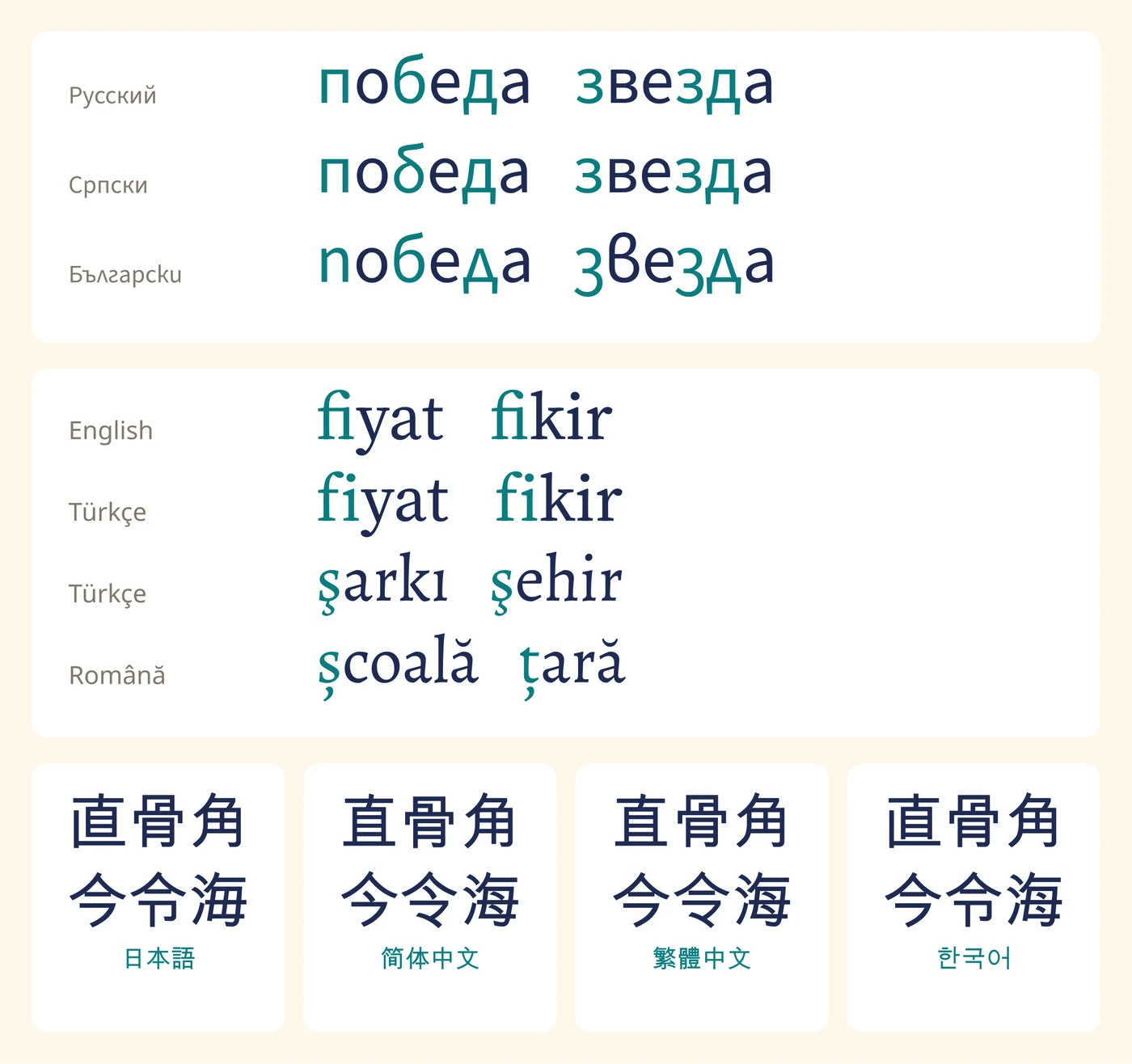
- Localised character forms: Fonts show the localised forms of the language assigned to the text, for example the Serbian б, the Bulgarian forms of the Cyrillic letters, ș and ț in Romanian or the Chinese instead of the Japanese character forms in fonts such as Noto Sans CJK and Source Han Sans; in Turkish, no fi ligature is formed. This requires a font that contains these forms. The alternates in the OpenType palette also show these forms.
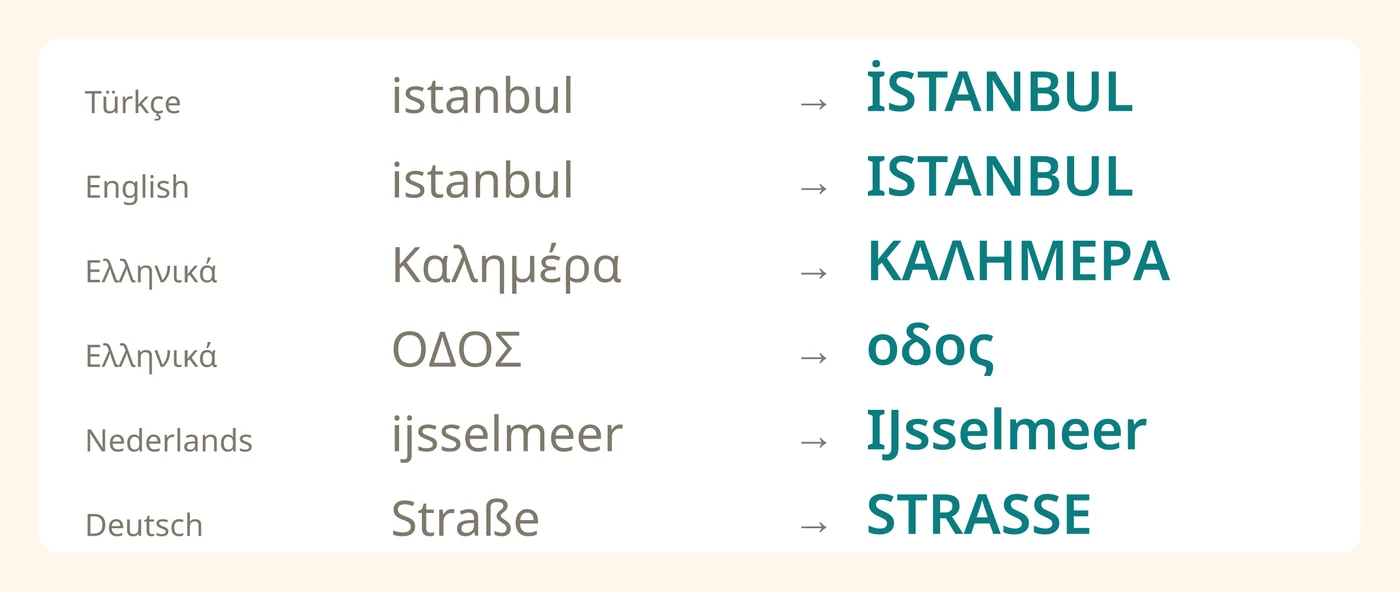
- Upper and lower case: The styles ALL CAPS, Small Caps, Lower Case and “Title Case” follow the language of the text: in Turkish and Azerbaijani, i becomes İ, Greek capitals lose their accents, in Dutch ij at the beginning of a word becomes IJ, and a capital sigma at the end of a word becomes ς in lower case. “Title Case” only changes the first letter of a word, so “VIVA” does not become “Viva”.
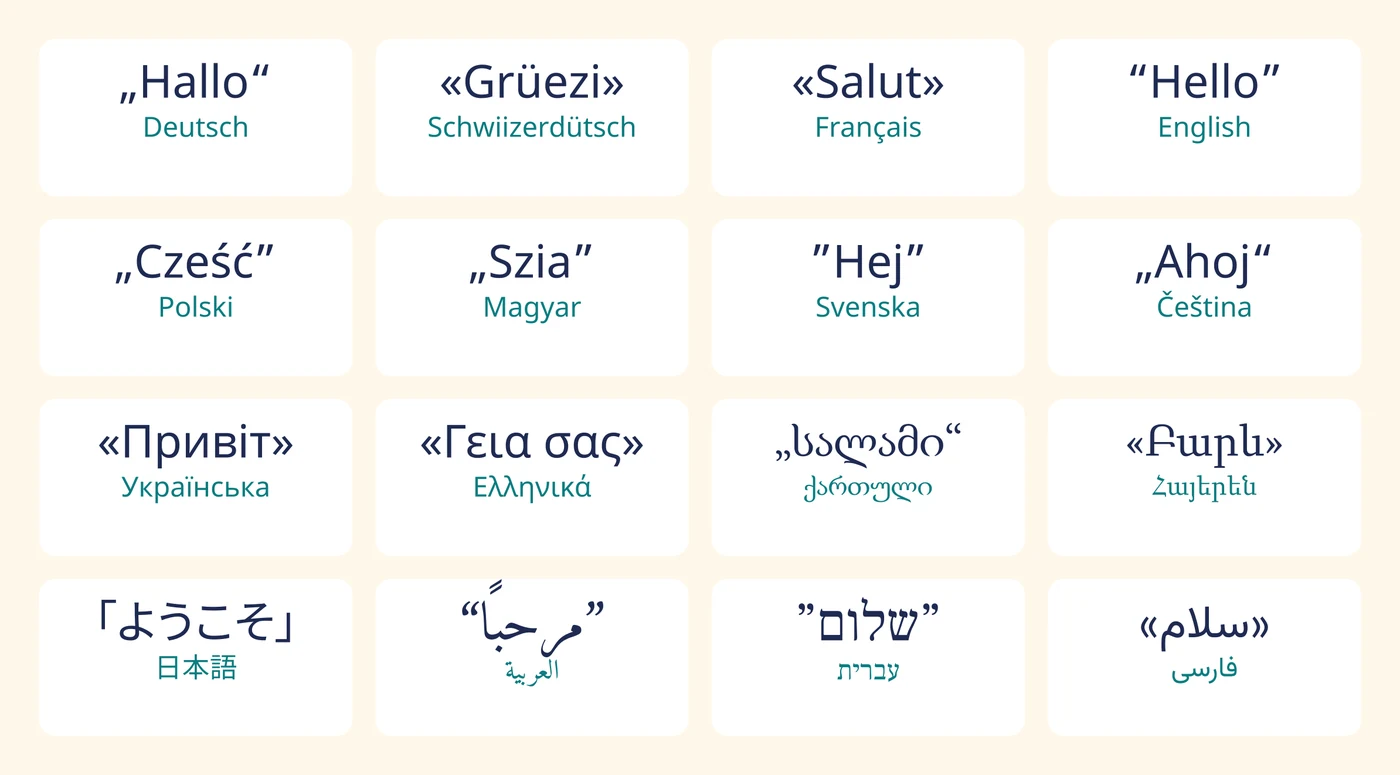
- Quotation marks: For 49 additional languages, the local quotation marks are preset, for example „…“ for Bulgarian, «…» for Ukrainian, ”…“ for Arabic or 「…」 and 『…』 for Japanese; the new languages also have their local marks. New pairs are available for this in the preferences. Settings you have changed yourself are kept, and documents keep their own settings.
- Chinese, Japanese and Korean: in vertical text, the characters are spaced as specified by the font for vertical typesetting, usually 1 em. Horizontally grouped characters (tate-chu-yoko) also occupy 1 em and are centred in the column. The arrow keys follow the direction of the text. Documents with vertical text are therefore reflowed.
- Korean and Vietnamese: date and time variables appear in the language of the text; Korean text receives Korean placeholder text when filled with placeholder text.
- VivaDesigner knows 44 new languages: Tamil, Kannada, Malayalam, Marathi, Punjabi, Odia, Assamese, Sanskrit, Khmer, Burmese, Macedonian, Basque, Maltese, Luxembourgish, Western Frisian, Romansh, Latin, Ancient Greek, Esperanto, Armenian, Georgian, Azerbaijani, Kazakh, Uzbek, Kyrgyz, Tajik, Mongolian, Amharic, Tigrinya, Yoruba, Hausa, Igbo, Somali, Persian, Urdu, Pashto, Central Kurdish, Uyghur, Sindhi, Yiddish, Dhivehi as well as Traditional Chinese, Chinese (Taiwan) and Chinese (Hong Kong). Chinese is now called Simplified Chinese. The names of the languages appear in the language of the user interface.
Platform and handling (15)
-
- Platforms: Native on Macs with Apple silicon (M series) and with Intel processors as well as on Windows and Linux. On Linux, the programs run from Ubuntu 24.04, Debian 12 and Fedora 37 on.
- Export in the background (to be switched on in the program preferences): while a PDF, image, EPS or PostScript file is being created, you can keep working in other documents. The new “Background tasks” palette (“Window” menu) shows every export with progress and duration, cancels it on request and opens the finished file.
- Recovery after a crash: on the next start, VivaDesigner offers to reopen the documents that were last open – optionally including their unsaved changes (Preferences: Program › Backup › “After a crash”).
- Multiple screens with different scaling or resolution: windows, palettes, dialogs and the document view adapt when moved to another screen and stay sharp; 100 % zoom is the original size on every screen.
- Window positions: Program windows, palettes and dialogs reopen on their screen at the next start. If a screen is disconnected, its windows return to an existing one.
- Docking palettes: New option “Dock all palettes” in the menu Window › Workspace.
- New start dialog: greeting by time of day or occasion (can be switched off), recently opened documents with preview, a direct task for the assistant, “New in version 12”, manual and examples.
- Custom keyboard shortcuts: Your own keyboard shortcuts per mode (object, text, table and picture mode) with a check for duplicates. Shortcut sets can be saved, imported, exported and printed as an overview.
- Shortcut sets for switchers: Shortcut sets for switchers from InDesign, QuarkXPress, Affinity Publisher, Scribus and MS Publisher; the shortcuts follow the keyboard layout.
- New 2027 look: every program has its own splash screen, About window and video, plus new program and document icons.
- Toolbars and workspaces: Custom toolbars can be exported and imported; workspaces apply per program – also in VivaImpose and VivaPosterize.
- XML editor for XMP user information and MathML: line numbers, colours, checking while typing, folding and unfolding, “Format” and “Remove chat markup”.
- Web Edition: The Web Edition takes over keyboard, shortcut set and language when it is called.
- Author notes: several addresses per field, each with QR code, “Open link” and “Copy”.
- Crash diagnosis: if the program terminates because of an internal error, it writes an entry with the error message and the location in the program to the file crash.log in the log folder. This helps VIVA support find the cause.
VivaDesigner Server (10)
-
- AI service: The server provides the AI service for the VIVA AI Assistant. For each project, the administrator chooses the AI model and the place of processing in the project settings, for example the EU or Germany, with a separate model each for “Thorough” and “Fast”; voice input follows this choice. Billing is per task in VIVA Points, web searches included if the chosen model offers them; every conversation has an adjustable budget.
- Assistant tasks: Every task for the assistant appears in the job history of the dashboard with instruction, document, steps, answer, VIVA Points and result. A project switched off in the dashboard accepts no tasks.
- Data protection: The conversation history is deleted 24 hours after the last activity; contents and login data do not appear in the statistics.
- Payment server: The payment server reserves the maximum possible cost of a running task until it is booked – so several servers using the same account cannot overdraw it together.
- Font server: Font server for “Discover Fonts”, with its own “Font Server” page in the administration.
- FTP access: FTP access (FTPS) to the template folder of a project, with several users and separate rights; switched off by default.
- “Administration › AI Actions”: you edit the AI actions for server and project in forms, with a preview of the AI palette, validation, a free test of the prompt and a retained previous version; project administrators edit the actions of their project. Your changes are kept during updates.
- Templates and formats: The server opens InDesign documents (INDD, INDT) directly as templates; it downloads missing free fonts automatically from the VIVA font server. It also opens QuarkXPress, Affinity, Scribus and Word documents (DOCX) and returns them via the export, for example as IDML or PDF.
- Web client: The web client also accepts images from Paint.NET, Krita, OpenRaster and GIMP, camera RAW as well as GIF, WebP and AVIF via drag and drop.
- “Updates”: the server keeps the installed versions and, on request, returns to an earlier one of the same main version, optionally with the settings from before the update; history and projects are kept.
Database Publishing (4)
-
- JSON: JSON files (flat object or array of objects) can be selected as a data source like CSV files, also via drag & drop.
- “Convert pages to VivaCP forms”: object tags transferred by the IDML import become fields of the CP form.
- “Convert pages to VivaCP forms”: {script:Name} in the text inserts the value of a document script instead of a data field.
- Numbers: Apple Numbers documents as a data source.
Improvements (132)
Editions (3)
-
- Export formats: IDML export, PDF Import (opening a PDF as a document), EPS export and EPUB export now belong to all purchased editions; previously the PDF Import was missing in the Personal, GOV, EDU and NGO Edition, the EPS export in the Personal Edition and the EPUB export in the EDU Edition. The Free Edition no longer includes the IDML export; it still opens IDML and InDesign files.
- Barcodes: besides QR and EAN codes, the Commercial, GOV and Web Edition now also offer the 62 further barcode types, e.g. Code 128, Data Matrix, PDF417, ISBN and UPC, without a barcode licence of their own. In the Personal, EDU and NGO Edition, the barcode licence still unlocks them.
- VivaDesigner Server: all import and export formats are available regardless of the licence type. PDF and AI files can also be opened with a runtime licence, HTML and VivaXML export no longer need an additional licence of their own.
Speed and reliability (11)
-
- Scrolling and PDF export: Scrolling and PDF export are much faster in documents with many pages (with 300 pages, scrolling about four times, export about twice as fast); typing in long text chains takes about half the time; the first document after the program start opens faster.
- Text composition: Text is composed and reflowed faster; program start and text composition are noticeably faster because font names are compared faster.
- Optical margin alignment: Faster text composition with optical margin alignment.
- Faster program start: unreachable servers (spell checking service, converter, templates, activation) no longer block the start.
- Less load: While VivaDesigner is waiting for a response from the internet, it no longer puts load on the computer.
- Memory use: Much lower memory use when copying, closing documents, in collections and with scripts.
- Saving: If writing the file fails when saving, the previous file is kept. The latest backup copy of every document is no longer deleted.
- Background backup: The background backup only saves changed documents, does not save in the middle of an operation and no longer opens a “Save as” dialog for read-only files.
- Undo: Pasting text into table cells can be undone, even if the table grows. “Remove background” and “Image editing…” of the ImageMatting AddIn can be undone as well; partial retouches lie as a retouch layer over the unchanged original.
- Faster: typing in long texts, in text chains and with many footnotes and endnotes; opening long documents, documents with many linked text objects or footnotes and documents with many pictures.
- Better communication with VivaCloud: jobs with pictures from VivaCloud query each cloud folder only once and run smoothly even over a slow connection.
PDF export and output (17)
-
- PDF export with PDF tags: language per paragraph, assignment of table header cells, links and cross-references in the document structure, objects on alias pages as artifacts (in documents without articles, “View › Reading Order” does not number them either, and the EPUB, DOCX and HTML export leave them out in this order); references to pages jump to the right place in all PDF viewers.
- PDF/A export: placed PDF files stay vector graphics; documents with RGB graphics, transparency or a greyscale output intent pass the check.
- PDF export: page contents are about half as large; files are created faster and open more quickly.
- PDF export: text and vector graphics are compressed by default. Existing documents keep their saved setting.
- PDF export: the working space profiles (sRGB, SWOP) are only embedded if “Embed ICC profiles” is set or PDF/X or PDF/A requires them. This makes the files several hundred kilobytes smaller.
- PDF export: pictures with an unused transparency channel no longer get a mask.
- PDF export: if the conversion to a standard version fails, the cause is reported. If the colour profile of the output intent is missing, the working colour space is used and the substitution is reported.
- PDF export: when exporting to PDF/X-1a and PDF/X-3, all colours are converted to the output profile; pictures in Adobe RGB and ICC v4 output profiles are taken into account.
- PDF export: text in Type 1 fonts and text with ligatures can be searched and copied in the exported PDF. PDF 1.7 with extension level 3 or 8 is encrypted with 256-bit AES.
- Placed PDF and EPS files: embedded and symbolic fonts, soft masks, embedded colour profiles, JPEG 2000, JBIG2 as well as Chinese, Japanese and Korean text (also vertical) are displayed. Spot colours, CMYK and JPEG images from EPS files are preserved in the PDF. Encrypted PDF files with 256-bit AES can be placed.
- Strokes: Sharp corners of strokes appear on screen as in the PDF export and in print: if a mitre exceeds the mitre limit, the corner is bevelled – also for dashed lines.
- Inner shadow: The inner shadow now only lies on the sides given by the light angle.
- SVG and EMF: Placed SVG and EMF graphics appear in the size browsers and Office show. English UK: date variables and the PDF language tag follow British conventions.
- PDF export: RGB gradients stay RGB. In the accessible PDF, pictures and formulas state their position, and bookmarks expand correctly.
- Placed PDF, EPS and PostScript files: shifted or rotated PDF pages are shown completely, Illustrator EPS and PDF files with many gradients are much faster, they appear sharp when zooming and thumbnails of multi-page PDF files appear quickly. PostScript files arrive with their embedded fonts; replaced fonts are named. Barcodes also appear sharp when zooming.
- PDF export: from PDF 1.4 on, a PDF without tags also states the main language of the document or the collection; checking programs such as the accessibility check of VivaPDF thus recognise the language even without tags.
- PDF export of a collection: if none of its documents has a cross-document table of contents, the PDF receives the bookmarks of the individual documents.
Security (9)
-
- Signed program files: All supplied program files and libraries are digitally signed; VivaDesigner Server also starts on Windows 11 with Smart App Control switched on.
- Security: placed pictures and ZIP archives are checked more strictly.
- Security: the program and VivaDesigner Server check the server certificate for all online services.
- XMP metadata: VivaDesigner reads and writes XMP metadata with its own code; faulty XML is reported with line and column.
- FileSender: sending via FTP works again; connections are checked securely.
- Security: updates are downloaded encrypted and only installed if they are signed by VIVA.
- Security: unpacked working copies are removed after closing, on the desktop and on the server.
- Security: oversized Excel, Numbers and Pages files are rejected with a reason.
- Security: VivaCalc never runs macros; VivaPDF opens no network paths and does not save password fields.
InDesign import INDD (10)
-
- Directly on your computer: VivaDesigner now always reads InDesign documents and templates (.indd, .indt) itself, directly on your computer; the conversion via an online service of VIVA is no longer needed, and the document no longer leaves your computer. The InDesign import is therefore part of all programs with IDML import, including VivaDesigner Server.
- From CS2: InDesign documents can be opened from CS2 (format version 4).
- Newly transferred, among others: table and cell style sheets, object styles, GREP styles, nested styles, OpenType features, manual kerning, optical margin alignment, paragraph shading and paragraph borders, text variables, updatable cross-references, hyperlinks, notes as comments, text on paths, page margins and columns, page numbering in sections, baseline grid, layer settings and layer colours, drop shadows, glow, gradient feather, overprint, blend modes, arrowheads, frame corners, auto-sizing text frames, multi-state objects, embedded EMF and WMF graphics and the position of anchored objects.
- More accurate: Tables, text objects, columns, justification, leading, drop caps, lists and anchored objects follow InDesign much more closely.
- Master pages: Master pages based on another master page show its content; overridden placeholders no longer appear twice.
- Linked pictures: Linked pictures are also found next to the document and in the “Links” folder. If a picture is missing, the preview is embedded.
- Options dialog: Options dialog when opening with the same settings as the IDML import, plus the quality check layer and a log that can be saved as a text file.
- Report: After opening, a report lists what could not be transferred or only approximately – grouped by type, with count and details.
- Damaged files: Damaged or truncated InDesign files open more reliably or are rejected with a reason.
- InDesign import (INDD and IDML): hyphenation, date variables, hyperlinks to text anchors, “split columns” and clipping paths are transferred.
InDesign IDML Import/Export (13)
-
- IDML export completely revised: it now writes IDML directly, outputs header and footer areas of text objects as separate text frames, maps text layouts to paragraphs spanning columns and embeds pictures whose file is missing.
- InDesign import (INDD and IDML): articles with all their objects, nested styles, characters outside the Unicode basic plane, documents from InDesign CS to CS5.5, as well as table of contents levels, alternative text, PDF tags, index entries and “Bevel and emboss”.
- Object tags: Tags set on objects in InDesign are transferred on import.
- Page sizes: Support for different page sizes.
- Quality check: Quality check layer on import.
- IDML and INDD import: the options dialog names the running import in its title; new option “Convert tags to variables”; the button “Report a problem” leads to the VIVA web page for feedback on the import.
- IDML and INDD import: if “Quality check” is chosen and there is no PDF of the same name next to the document, the import asks for the PDF.
- IDML export: embedded images, bullets, lines, removed objects of alias pages and column widths of tables arrive correctly when reopened. Style sheets with umlauts, comma or percent sign in their name keep their name.
- Photoshop layers: Hidden layers of placed Photoshop images remain hidden.
- Cropped PDF files: Placed PDF files cropped to a section in InDesign appear at their size in the place where InDesign shows them.
- Scripts: IDML export from scripts without options dialog; scripts can query which formats can be opened, saved and exported and pass parameters to the export.
- IDML import: the quotation marks per language are transferred.
- IDML export: placed VivaDesigner documents are written as PDF to the “Links” folder.
Word import and export DOCX (15)
-
- Word documents are transferred much more completely: paragraph, character and table style sheets with inheritance and next style, multi-level bulleted and numbered lists in all of Word’s number formats.
- Tables: Tables with merged cells, borders, cell colours, vertical alignment, nested and floating tables; long tables run over several pages.
- Pictures and objects: Pictures (also freely placed, cropped, rotated, with text wrap), text boxes, shapes with gradients, transparency and pattern fills, grouped drawings, footnotes and endnotes, comments, hyperlinks and cross-references.
- Sections: Sections with their own page format, margins and columns; headers and footers for first, even and odd pages; page numbers as variables; line numbers; watermarks.
- Charts: Charts arrive as editable VIVA Charts (with their licence), otherwise redrawn as before: column, bar, line, area, pie and doughnut charts as a group of shapes and texts with title, axes, legend and labels – styled as in Word.
- Equations: Equations (Office Math) are transferred as MathML formulas.
- Tables of contents: Tables of contents can be recreated in VivaDesigner with “Create table of contents”.
- Writing systems: Arabic, Hebrew and East Asian text gets its own font; emoji are preserved.
- Word import: line spacing, table rows and objects at the start of a paragraph as in Word; long documents open much faster.
- Options dialog: Options dialog when opening and importing text, progress display and cancel. Large documents open much faster.
- Strict Open XML: Documents in “Strict Open XML” format are read; tracked changes arrive accepted or, on request, as marked text; password-protected documents are not opened.
- Document properties: Title, subject and keywords from the document properties appear in the document settings and in the exported PDF.
- Notices: Anything that cannot be transferred is reported after opening.
- Word import: footnote numbers and running heads as in Word; logarithmic chart axes, arrowheads, older lines and nested tables are transferred correctly.
- Word export: anchored pictures and vector graphics (also with soft masks) are transferred; the dialog remembers its settings, the report is clearer and translated.
RTF import (8)
-
- Writing systems: Text in all writing systems arrives completely – Western and Eastern European, Cyrillic, Greek, Turkish, Hebrew, Arabic, Thai, Vietnamese, Japanese, Chinese and Korean.
- Style sheets: Style sheets arrive as paragraph and character style sheets with based-on and next style.
- Newly transferred: line spacing, paragraph borders and shading, tabs with leaders, underline types, text highlighting, language, drop caps as well as page, column and section breaks.
- Lists and tables: Bulleted and numbered lists with levels, numbering style and bullet characters; tables with column widths, merged cells, rules and cell colours; multi-column sections as layout areas.
- Pictures and objects: Pictures (PNG, JPEG, BMP, WMF, EMF), text boxes, shapes, freeform shapes, groups, positioned frames and embedded objects are transferred.
- Fields: Fields become variables, hyperlinks and comments; index and table of contents entries become markers from which VivaDesigner can create the indexes.
- Revisions: Revisions from Word arrive as marked changes.
- Other programs: RTF files from WordPad, TextEdit, LibreOffice, OpenOffice, Oracle Reports, Crystal Reports and Apache FOP are read reliably.
Further import and export formats (15)
-
- Preview: The Open dialog shows the preview of InDesign documents (.indd, .indt), newer IDML files, Affinity documents and Microsoft Publisher files.
- Missing fonts: When opening imported documents, VivaDesigner asks for missing fonts immediately and replaces them on request.
- “Missing fonts” dialog: choosing a weight no longer resets the replacement font.
- Paste without formatting: line breaks, tabs and non-breaking spaces from Word and other programs are kept [VHD-15306]. Named characters such as “ ” are taken over when pasting with formatting.
- Import and export of XPress and VIVA tags: footnotes, variables, running heads, process colours, emojis and style sheets arrive completely.
- PDF import: auxiliary areas without a visible effect are no longer created as empty objects. EPUB: the language of the e-book follows the document language; images get their alternative text.
- Excel files as data source: whole numbers with more than ten digits, such as EAN-13 codes, arrive completely.
- SVG Import: sharp corners stay sharp.
- MS Publisher Import: documents with e.g. Polish or Greek letters in the file name can be opened; graphics that cannot be measured keep their scaling in the picture object.
- VivaXML: the import is better protected. Documents from older VivaXML versions are placed correctly again. If a picture file is missing, it is searched for in the folder of the XML file, otherwise the embedded preview is used as a placeholder. The supplied XSD schemas describe the export completely again.
- VivaNWP: pictures in SVG, EMF and WMF format are placed in the production; XML objects also find their picture file when the reference has attributes.
- Excel import: column widths and default font as in Excel, formats of whole rows and columns; large sheets arrive in seconds.
- PDF import: the text stays at the position of the original, also with wider substitute fonts; text drawn several times arrives only once, text with an outline keeps its outline.
- Pages and Numbers import: links, lists as well as lines and fills of the table style are transferred.
- HTML import: <strike>, <s> and <del> receive the style sheet “[Strikethrough]”, and list items find their style sheet as described (own class, “<li-level>”, “<li>”, “[Bullet-level]”/“[Numbering-level]”). Pasting text from the browser no longer clears the undo list.
Interface and handling (15)
-
- Palettes: Palettes keep their position, size, tab order and front tab when switching between document and collection.
- Attribute bar: While typing, the attribute bar shows the font that is in the text.
- Font selection: After opening a document with embedded fonts, the font selection only shows the fonts used by the document.
- Pages palette: alias page letter and page number are closer together, side by side for landscape pages.
- File dialog: A complete path can be entered in the name field of the file dialog.
- AddIns: The list under “Help → About AddIns…” shows the names of the AddIns instead of their file names, sorted alphabetically. Several AddIns have new names: “SVG Import”, “DOCX Import”, “Adobe IDML Import/Export”, “MS Publisher Import”.
- Online services: The addresses of the online services can be changed without a new program version.
- Viva Collection for macOS and Linux: “Find pictures”, TextAdjuster and the MS Publisher Import are now included as on Windows.
- Duden: Duden hyphenation and spell checking no longer failed when VivaDesigner was started from another program.
- Multiple selection: With a multiple selection, X, Y, width and height show the whole selection; a height entered with Shift keeps the aspect ratio [VHD-9621].
- Text on paths: Text on polylines runs in the drawing direction and stands upright as in InDesign, also in the exchange via IDML and INDD; older documents remain unchanged.
- Arranging windows: Arranging and stacking windows uses the space next to docked palettes.
- Windows Explorer: Windows Explorer again shows the preview, info tip and the “Viva” property page.
- Windows: under “Open with”, the programs appear with their product name. If you open a document from Explorer while the program is already running, the program comes to the front with the document instead of only flashing in the taskbar.
- Update licence: a licence file with which the program would afterwards have no valid licence no longer replaces the existing one; the error page states the reason, for example expired, bound to another computer or for an older version.
Scripts (3)
-
- Scripts: collections are accessible from scripts; image and graphic style sheets know image corrections and the new effects; title, description, keywords and language of a document can be set.
- Script debugger: Script debugger in the VivaDesigner design and translated; the document is locked during a pause, Ctrl+S saves the script.
- Languages in scripts: Scripts know all languages with their language codes, the new number formats and quotation marks, the restart of footnote numbers, the “Digits” attribute and kashida.
VivaDesigner Server (11)
-
- Security: the web interface of VivaDesigner Server is much better protected. We recommend the update to all server customers.
- Blocking: Avoidance of blocking when running several instances or requests.
- AI billing: A failed AI action or spell check is no longer charged in VIVA Points.
- Data protection: Login data as well as texts and pictures from AI requests are not stored in the job history and statistics.
- Large requests: Large requests are only stored temporarily and deleted afterwards.
- AI: new actions for the alternative text of images and for title and description of documents. PDF export of collections with title, description and language of the collection.
- Security: the login to the administration is better protected. Changing commands to the administration are only accepted via POST; your own scripts that send such commands via GET must be changed.
- Security: project folders of the server do not run scripts.
- Administration: New sidebar in the administration; the service can be stopped and restarted reliably; messages in the Windows Event Viewer are readable. The “Settings” and “Font Server” pages and all dialogs of the administration have been redesigned; each area of the settings has its own save button.
- Security: forms, the progress page and the start page of a project only take over values from the address and file names in masked form. AI actions only read files from the public folders of the project and only fetch files via the server’s own address.
- API: The “API” page describes the programming interface as of 12.0, with all input and result formats and examples for converting documents. A request to a project that does not exist is rejected immediately.
Database Publishing (2)
-
- VivaCP and VivaIP: Numerous improvements to VivaCP and VivaIP forms, production with “Replace existing pages”, text fields with VivaTags, the ixPressionist import and VivaCP counters.
- “Convert pages to VivaCP forms”: “Rows:” in the note of a text field sets the number of lines in the form of VivaDesigner Server, the number in a picture name such as {2|Picture} determines the order in the form, and {script:Name} no longer creates an additional form field. An unknown or missing code type in a {code} object results in a QR code.
Discontinued (11)
-
- PDFImport: The “PDFImport” AddIn is discontinued; it is replaced by the new “PDF Import” AddIn, which accepts the same formats.
- XLSImport: The “XLSImport” AddIn is discontinued; Excel files in the old .xls format can no longer be opened as documents. Excel files in XLSX format are taken over by the new table import.
- DXFImport: The “DXFImport” AddIn is discontinued; DXF files can no longer be imported.
- Measurement: The “Measurement” AddIn is discontinued; dimensioning of objects is no longer available.
- eBook: The “eBook” AddIn is discontinued; EPUB files are still exported by the “Electronic Publication (EPUB)” AddIn.
- WebDict: The WebDict AddIn and the Viva DictServer are no longer supplied. Spell checking and hyphenation remain available.
- “Find pictures”: the web search via a search engine is discontinued. Searching folders, drives and the image databases (123RF, Canto, Mediamid, ResourceSpace) remains.
- OPI: OPI (Open Prepress Interface) is no longer supported; the setting has been removed from the print settings. OPI values stored in documents and scripts remain readable but no longer have any effect.
- VivaAPI: AddIns of the former VivaAPI interface are no longer loaded; all supplied AddIns use the UniAPI.
- Page formats: Outdated page formats, including Twitter Fleets, old iPhones and iPads, Nexus and Kindle Fire HD; existing documents keep their size.
- Linux: Ubuntu 22.04, Debian 11 and Red Hat Enterprise Linux 9 are no longer supported; the programs run from Ubuntu 24.04, Debian 12 and Fedora 37 on.
Bug fixes (47)
Crashes and stability (11)
-
- Various crashes: Various crashes, among others with damaged preview images, licence files, AddIn settings and VivaXML data, when right-clicking in text and with images in footnotes.
- Quitting: Crash when quitting the program (with an open document, after a failed licence check of an AddIn, caused by some AddIns, mainly on macOS).
- Program start: Crash when the program was quit while it was still starting.
- Mouse wheel: Crash when scrolling quickly with the mouse wheel.
- Attribute changes: Crash with rapidly successive attribute changes on the same object.
- Text reflow: Crash when reflowing text with certain control characters after a paragraph end and with certain documents containing footnotes in table cells.
- Linux: crash when an AddIn asked for the current picture while a document was being created.
- JScripter: a script started via its full path or the command line could crash when accessing texts, files or folders; pictures from raw data with wrong dimensions and clearing a picture content caused a crash.
- Hangs: Hangs and text loss with vertical text, split anchored tables, tabs beyond the end of the line and optical margin alignment.
- Crashes: Crashes when moving or deleting pages in the Pages palette, when clicking the page selection of the navigation bar without an open document and when a logged text contained a percent sign such as “%n”.
- Optical margin alignment: a zero-width character at the edge of the line, such as a single accent, made the program and the workers of VivaDesigner Server crash.
PDF export and output (11)
-
- PDF export: crash or cancellation when a linked picture was unreachable – also with “Crop images”. The missing picture is now reported as a warning.
- Gradients: [VHD-14454] Error during PDF export with gradients consisting only of white.
- Print PDF: [VHD-14906] Print PDF not exporting with font family.
- Clipping objects: A page whose only object is a clipping object containing a group remained white in the preview, and the PDF export was cancelled.
- Screen scaling: The PDF export depended on the screen scaling (e.g. with focus gradients).
- Strokes: [VHD-6240] Fine light line between stroke and fill with line alignment “Inside” or “Outside”.
- PostScript export: After PostScript export, the viewer received an already deleted temporary file.
- PostScript and EPS export: PostScript and EPS export lost round and bevelled corners, line ends and the mitre limit.
- Export as HTML files: empty page range in a new installation, missing graphics, wrong position on spreads and always A4 instead of the page size of the document.
- HTML and EPUB: HTML export without grouped objects; EPUB without a table of contents was invalid.
- PDF export of a collection: blank pages inserted before a document in single-page mode showed objects of the pasteboard, and text on the pasteboard got into the table of contents. In single-page mode, pasteboard objects stay next to their page when pages are inserted.
Import (5)
-
- InDesign import: numerous crashes and display errors, including empty documents, missing pictures in table cells, truncated long texts, text objects stacked several times, misplaced master page objects, duplicate page numbers and swapped left and right pages.
- IDML import: the layer setting “Suppress text wrap when layer is hidden” was reversed; documents with master pages of more than two pages caused a crash.
- RTF import: most of the text was missing in files from Word, WordPad or TextEdit; crashes with various RTF files; a backslash in the text became a line break.
- VivaXML: the zoom was saved depending on the screen; documents with AddIn data or control characters in names could not be reopened after a VivaXML export.
- VivaXML: an “&”, “<” or quotation mark in names of chapters, style sheets, colours, notes or fonts made the saved file unreadable; files of older versions with such a character can now be opened.
Fonts (3)
-
- EPS fonts: [VHD-15241] Fonts only named by an EPS file were shown as not loaded.
- Font cache: If two programs were running at the same time, one could clear the other’s font cache.
- Font names: Fonts whose name begins with a style word (such as “Book Antiqua”) were considered missing in imported documents.
Interface and handling (9)
-
- Document setup: after changing the page format, the automatic text object of the alias pages disappeared together with its text.
- Palette bar: The lower palette bar appeared at random on the first start; after quitting with a collection in front, the document palettes were missing.
- File dialog: The file dialog often showed an empty file list after changing to a folder; a path typed into “Look in” was completed to a wrong drive.
- Start warning: If no connection to the VIVA server could be established at start, the warning was hidden behind the splash screen.
- Preflight: The preflight marker appeared on non-printing layers.
- AI palette: double-clicking an action runs it again.
- Program texts: Corrections to German program texts and dialogs (including EPUB, HTML and VivaHTML export, EXIF data).
- Mac with a German or Swiss keyboard: the trademark sign (™) is on Option+Shift+D; the previous shortcut typed a quotation mark.
- Web drives: if saving or an export to a web drive failed, the program still reported success; a complete path typed for a web drive was appended to the folder shown.
Other (8)
-
- Licence codes: Data was transferred incorrectly when activating licence codes.
- 123rf: the picture search found no results, and the orientation had no effect.
- Find pictures, Impose, Image-AutoImport: if the settings folder could not be created, files were stored in or deleted from the program or root folder.
- VivaDesigner Server: requests with more than 50 KB of content failed; after a new installation, jobs were missing in the job statistics.
- Running heads and drop caps: The running head briefly showed “Ka-1”; a drop cap of lowercase letters with text wrap was misplaced.
- Windows: if one of several installed Viva programs was uninstalled, the others also lost their file associations.
- Trial version: After the trial version expired, the program lost the licences of its AddIns when switching to the Free Edition.
- VivaDesigner Server: an update replaced the server licence with the supplied provisional licence; a line break in a value of the address led to the start page of the project; cut, delete or align in the web client without a suitable selection and a cut-out request without an image file could crash the designer or the server.