With the introduction of VivaDesigner 8, we offer the optional service of a conversion from QuarkXPress documents in formats 4.0 to 9.0. Send us your QuarkXPress documents to check the quality of the conversion. Depending on the program edition a certain amount of documents are converted free of charge, for additional documents we raise a minimal administration fee.
Faster than ever
VivaDesigner has been made considerably faster in many functional areas. The opening of documents has been accelerated threefold, and text entry by ten to a hundredfold.
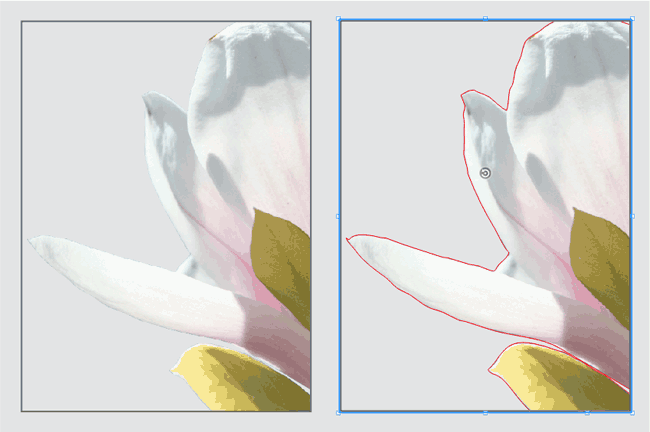
Clipping (Visualize)
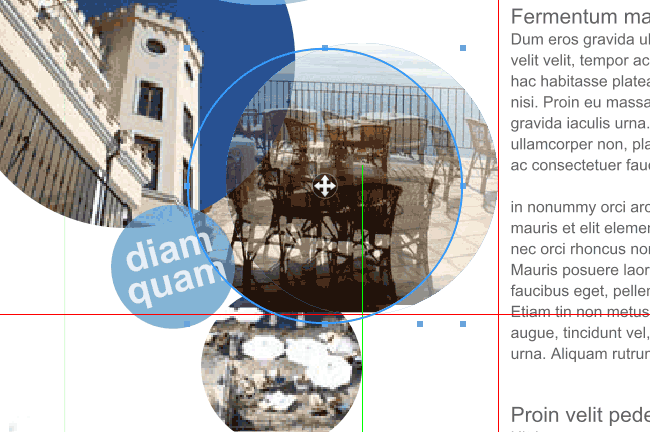
You have often asked yourself why an image is not transparent or why an incorrect crop is displayed? To find the answer you must normally open the image in an image editing program. VivaDesigner visualises optionally the clipping path and the Alpha channel.
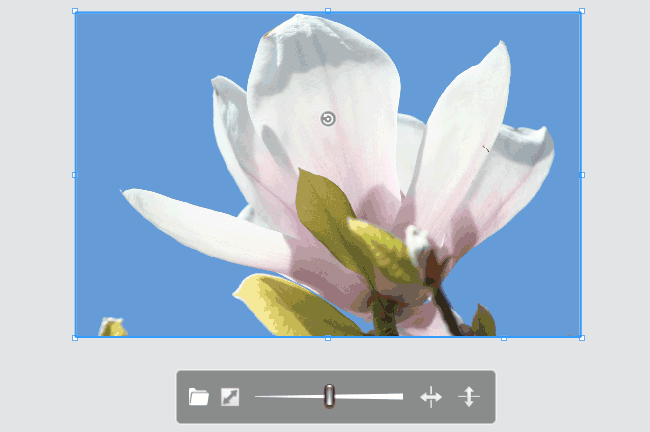
Fast Image Scaling & Fitting
With the new selection point, picture objects can be scaled without using any additional shortcuts. With a simple click on the Fit symbol, image objects are proportionally filled automatically so that no white space appears.
Visualize Missing Fonts
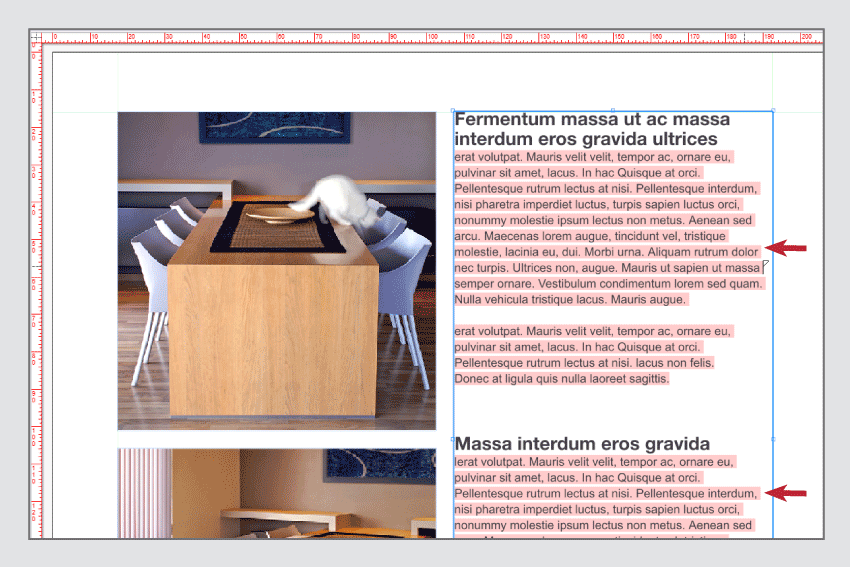
Until now, missing fonts were displayed on opening the document, in the Font Usage and in the Module palette. In Version 8, missing fonts are now displayed visually in the layout with a pink background.
Multilingual Placeholder Text
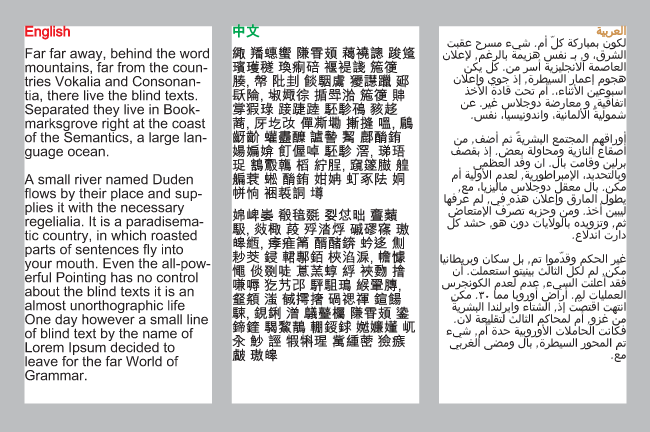
You can fill text objects with language specific placeholder text to obtain a complete impression of the layout. You can edit the placeholder text yourself for all 30 languages.
Image Embedding
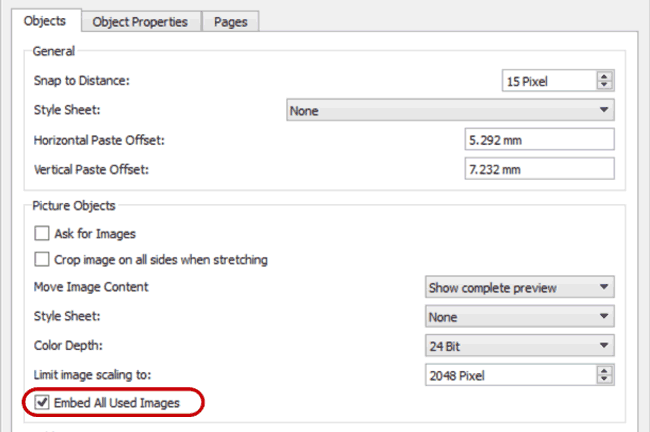
As default, VivaDesigner only saves a preview of the images used in the document. With the option “Embed all Used Images”, the high-res data of all the images used is also saved in the document.
Alternative (Web) Interface
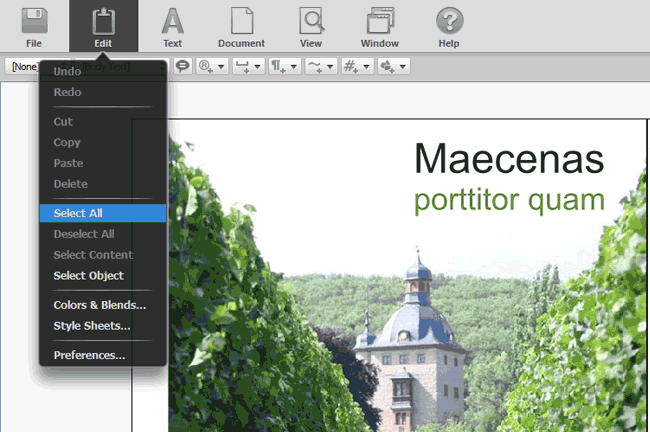
The new neutral interface design was developed for editing documents in the Web , but can also be used on the desktop. Its basis is that users don’t want to see any design of a desktop program in the browser. With the new platform neutral design, a seamless integration of VivaDesigner in a Web application is even optically possible.
Smart Guides
Smart Guides were originally developed for CAD programs and enable fast alignment of objects to objects on the same page or facing page. In many cases you save yourself the necessity of creating guide lines or guide objects by using Smart Guides.
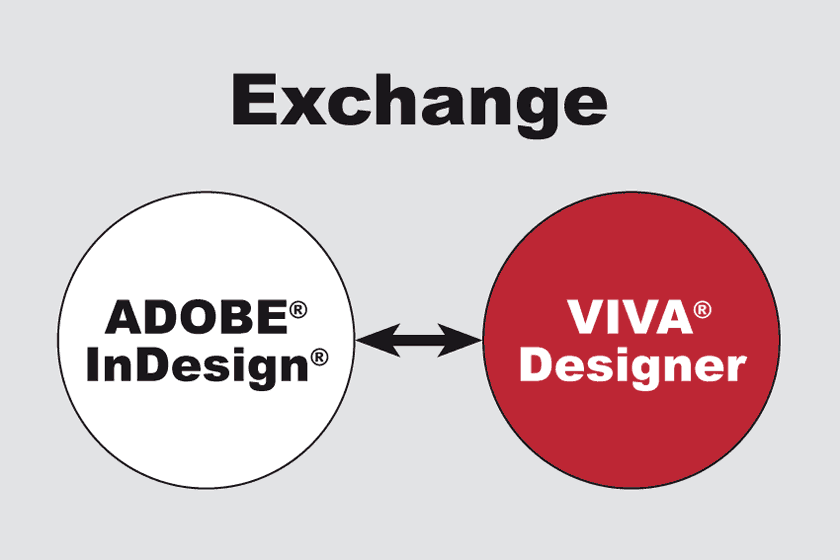
Import & Export of Adobe InDesign Files
You can open documents created with the layout program “Adobe InDesign” (hereinafter referred to as “InDesign”) directly in the program.
Please read the section “Opening Abobe InDesign documents” in the manual.
The following InDesign formats are supported:
| Format | Designation | Brief description |
| INDD | InDesign Document | The native standard document format for Adobe InDesign. Contains layout, text, images, styles, and metadata. The format can be opened directly in the program via File > Open. |
| IDML | InDesign Markup Language | XML-based exchange format. Used for version compatibility (older versions of InDesign). The format can be opened directly in the program via File > Open. |
| INDT | InDesign Template | Template file for InDesign. Contains predefined layouts and styles that can be used as a starting point for new documents. The format can be opened directly in the program via File > Open. |
| IDMS | InDesign Snippet | Individual layout elements or objects (e.g., text or image frames, groups) can be saved as snippets and inserted into other documents. The format can be inserted into document pages directly in the program via File > Import. |
| ICML | InCopy Markup Language | XML-based exchange format for Adobe InCopy. Used to allow editors to edit text independently of the layout. The format can be imported directly into text objects in the program via File > Import. |
| ZIP | Zigzag Inline Package | ZIP archives are not an InDesign format, but a general compression format. You can save an InDesign document (e.g., in INDD or IDML format) together with images and fonts as a ZIP file. The format can be opened directly in the program via File > Open (including resources). Please note the information in the section “Opening ZIP archives”. |
To do this, the program converts the document into its own format so that they are saved in their own format when you save them. Depending on the edition, the program can also export documents in InDesign format. Please refer to the corresponding section Export InDesign document.